AI agents
Chat
How to work with your agents in the IDE's chat: who works on a message, Plan first, what happens during a run, @ mentions, images and code context, stopping and continuing, history, and tips for good prompts.

On this page
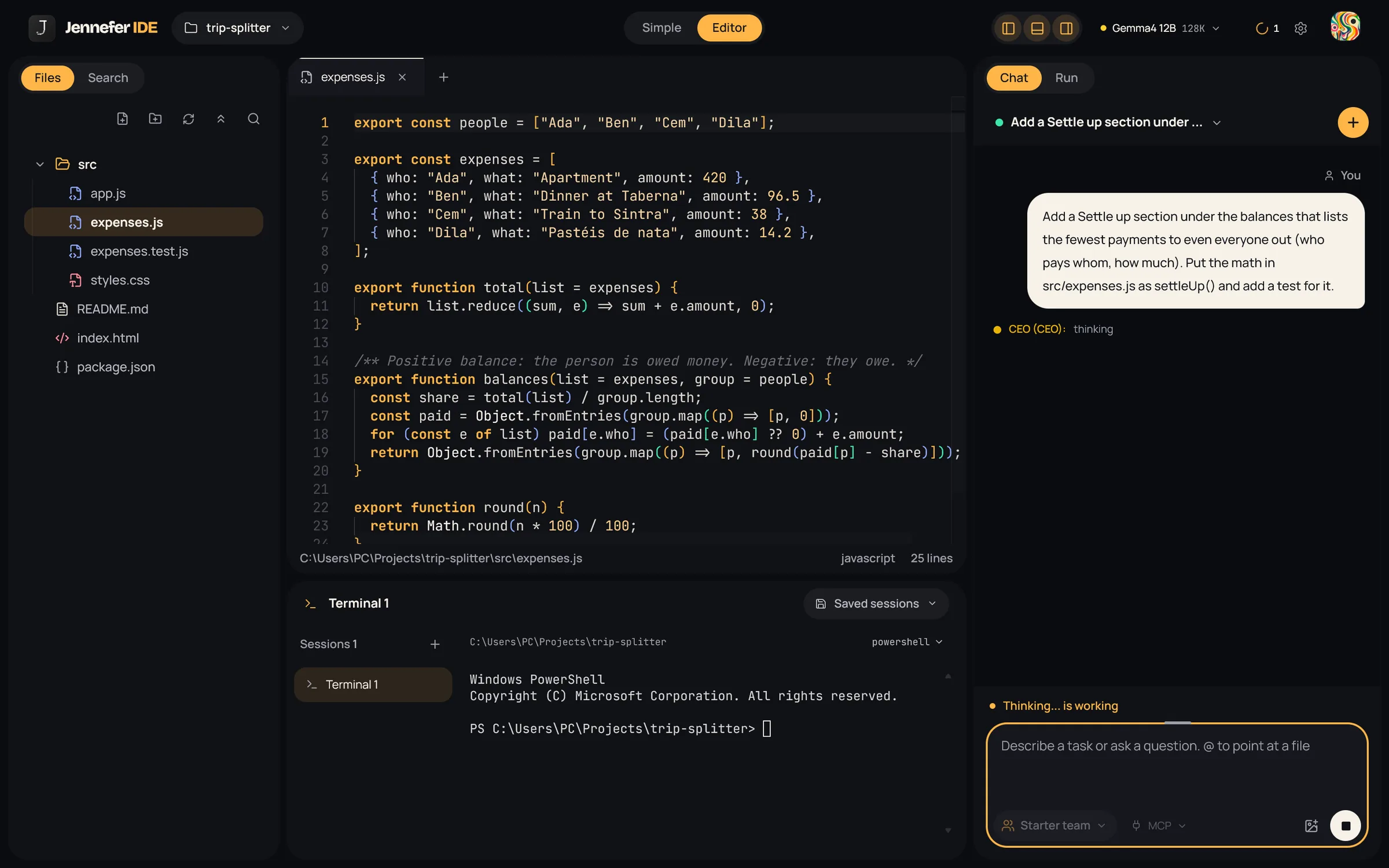
The Chat tab on the right of the Workbench is where you talk to your agents. In Simple the chat is the whole window. You describe what you want, and the agents read files, write code, run commands with your approval and report back.
Who works on your message#
In Editor, the team chip under the message box decides who works on your next message. Simple always uses the whole team.
| Choice | Who works | Changes files? | Best for |
|---|---|---|---|
| The whole team (default) | The team the IDE uses, led by its lead | Yes | Features, refactors, anything with several steps |
| Plan first | The lead alone | No | Seeing the plan before anything changes |
| One agent | One member you pick | Yes, with that agent's tools | Small, focused edits and questions |
The whole team#
The lead first decides what kind of message you sent:
- A question or a greeting: the lead answers directly.
- Too vague: you get a clarifying question instead of a guess.
- A plan only: the plan is built and waits for you. Reply yes, go or continue to start it, or ask for changes in plain words.
- Work: the plan is built, split into tasks and handed to the agents, and the result is checked. See Team runs.
Plan first#
Tick Plan first in the team chip. The lead reads your project and writes an implementation plan: which files change, which decisions matter and how to check the result. Nothing in your project changes. The plan opens as a document under Plans below the message box. When you are happy with it, turn Plan first off and ask the team to carry out the plan.
One agent#
Pick a member under Or one agent. That agent works alone in a loop of thinking, using a tool and reading the result, for up to 25 steps. It is quick for a contained job such as renaming a function or explaining a file.
During a run#
- A live badge shows what happens now: Planning, Dispatching, Executing or Thinking, and the message box says which agent is working.
- The chat stays short: tool steps are hidden while the agents work. After the run, a summary under your message shows who worked, how many steps and how long, for example Coder · 8 steps · 2m 17s.
- Chips under the message box open what the run produced: Files (changed files with a diff), Plans (plans and documents) and Terminals (the output of agent commands).
- Cards ask for your approval or answer. See Approvals and safety.
- The Run view shows the plan, the changed files, every model request and the machine load.
The message box#
In Editor it says Describe a task or ask a question. @ to point at a file. Press Enter to send and Shift+Enter for a new line. Drag its top edge to make it taller.
@ mentions#
Type @ to open a menu of files and folders, with Files and Folders tabs. Mentioning a file tells the agents exactly where to look.
Images#
Attach images with the image button, by pasting, or by dropping them on the message box. Images need a model marked Reads images in Hub > Models. With a text-only model, the message box warns you.
Code context#
Select code in the editor and a Code context chip appears. Choose Add to send it with your message.
MCP tools#
The MCP menu next to the team chip picks which MCP servers this chat may use. See MCP servers.
Stopping and continuing#
While agents work, the send button becomes Stop generation. The Running tab of the bell has Stop too. A stopped run never reports itself as completed. To pick up a team run where it stopped, send continue: unfinished tasks run again, and finished tasks are kept.
Closing the IDE stops a run. Stopping a run does not stop a dev server an agent started; closing the IDE does. See Agent tools.
Conversations#
- The conversation title at the top of the chat opens Conversations, with Search history..., delete, and Copy this conversation.
- + starts a New conversation.
- The header shows how much of the model's context the conversation uses.
- Conversations are saved on this computer, per project folder. Open another project and you see that project's history.
Connection messages#
| Message | What to do |
|---|---|
| Sign in to connect to Jennefer. | Sign in in the Hub. See First launch. |
| Your sign-in expired. Sign in again to connect. | Choose Sign in again. |
| Too many Jennefer windows are connected. Close one to connect. | Close another IDE or app window that runs agents. |
| Connecting to Jennefer... | Wait a moment. If it stays, check your internet connection. |
Writing good prompts#
- State the outcome, not the steps. "Add a password reset flow with an email token" works better than "edit three files".
- Point at files with @. Mention the entry point, the config, or the file you want changed.
- Attach the spec. Agents read PDFs as text, so you can mention a requirements document in the project.
- Say how to check it. "It should pass the existing tests" gives the team's check something to hold on to.
- Expect questions on vague goals. Answer briefly and the agents carry on.
- Split huge asks. Use Plan first, then run the plan piece by piece.
FAQ#
Can I chat without a project folder?
No. Agents read and write inside your project folder, so open one first.
Where is my chat history stored?
On this computer, per project folder.
Why did Simple create a new folder?
You asked for a new project while the open folder was not empty, so the agents created a sub-folder for it.