IDE
Run view
Follow an agent run in the IDE's Run tab: the Plan with tasks and decisions, the Report of changed files, the Model log of every model request, and the Machine with live hardware load.

The Run tab sits next to Chat on the right of the Workbench. It shows what happens behind a run, so the chat can stay short. While a team works, the tab shows a badge with the number of active tasks. The chat keeps running while you look at Run.
Run has four tabs: Plan, Report, Model log and Machine.
Plan#
Plan shows the tasks and decisions of a team run.
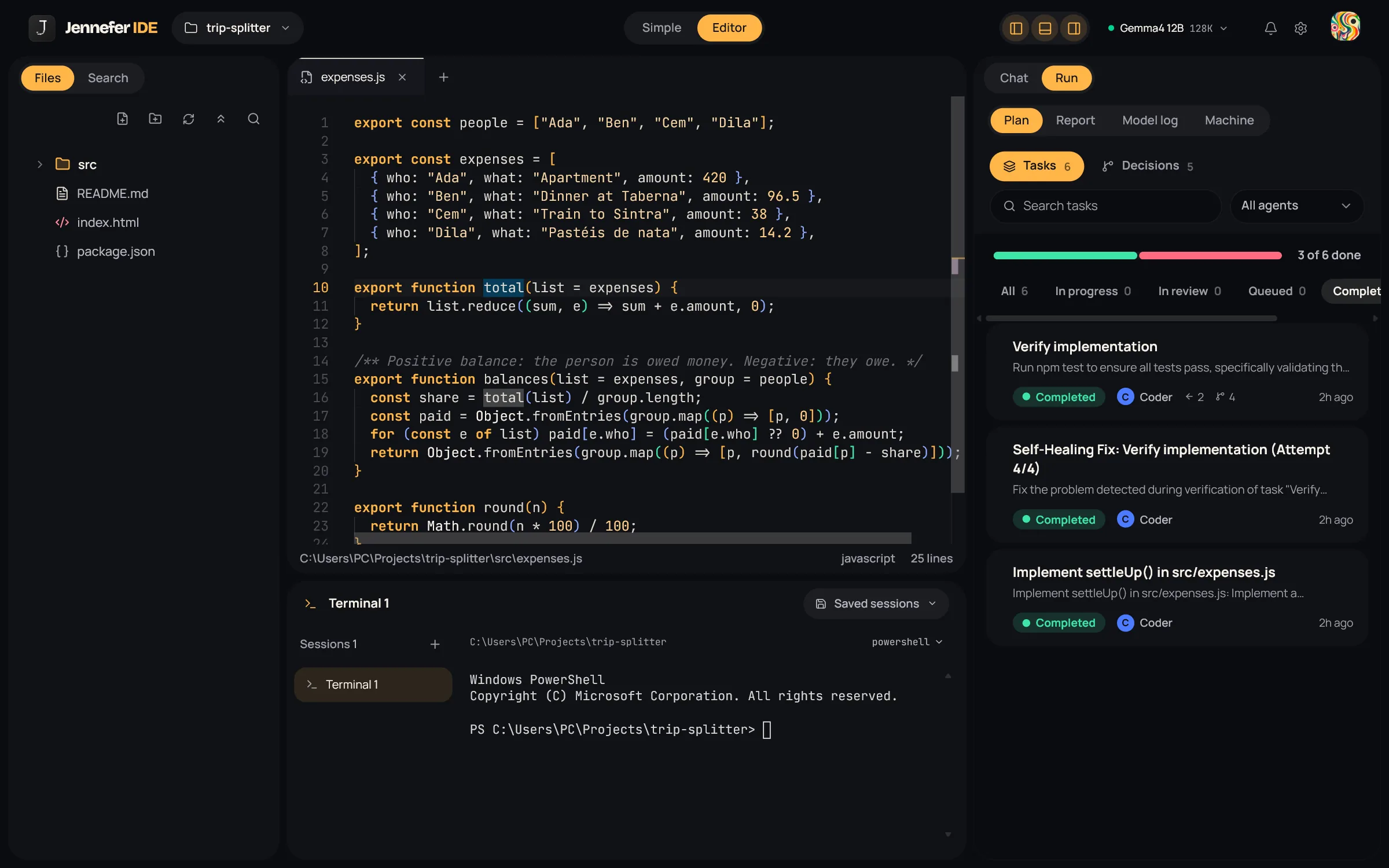
- Tasks and Decisions tabs, each with a count, a search box and an All agents filter.
- A progress bar, for example 3 of 6 done.
- Status filters: All, In progress, In review, Queued, Completed and Failed.
- Select a task to see its description, parent task, the tasks it unlocks, subtasks, required capabilities and its result.
- Select a decision to see the problem, the evaluation criteria, the alternatives considered, references and what it supersedes.
| Status | Meaning |
|---|---|
| Queued | Waiting for the tasks it depends on, or for a free agent |
| Assigned | Given to an agent, not started |
| Running | An agent is working on it |
| Waiting | Paused until tasks it started, such as a fix, are done |
| In review | Done and being checked |
| Completed | Accepted |
| Failed | Could not be completed |
| Cancelled | Stopped, or cancelled because something it needed failed |
Before a team run starts, Plan says No tasks found and Tasks appear here when agents begin work.
Report#
Report is the Run overview: its status, and four numbers: Context used, Session files, Line estimate (lines added and removed) and Duration.
- Changed files lists every file the agents changed in this session, with Find a file… and the filters All, New and Modified.
- Select a file to see the updated and original versions. Full diff opens a side-by-side diff in the editor, and the copy button copies the code.
Model log#
Model log shows every request the agents send to your model, live. It helps when a run feels slow.
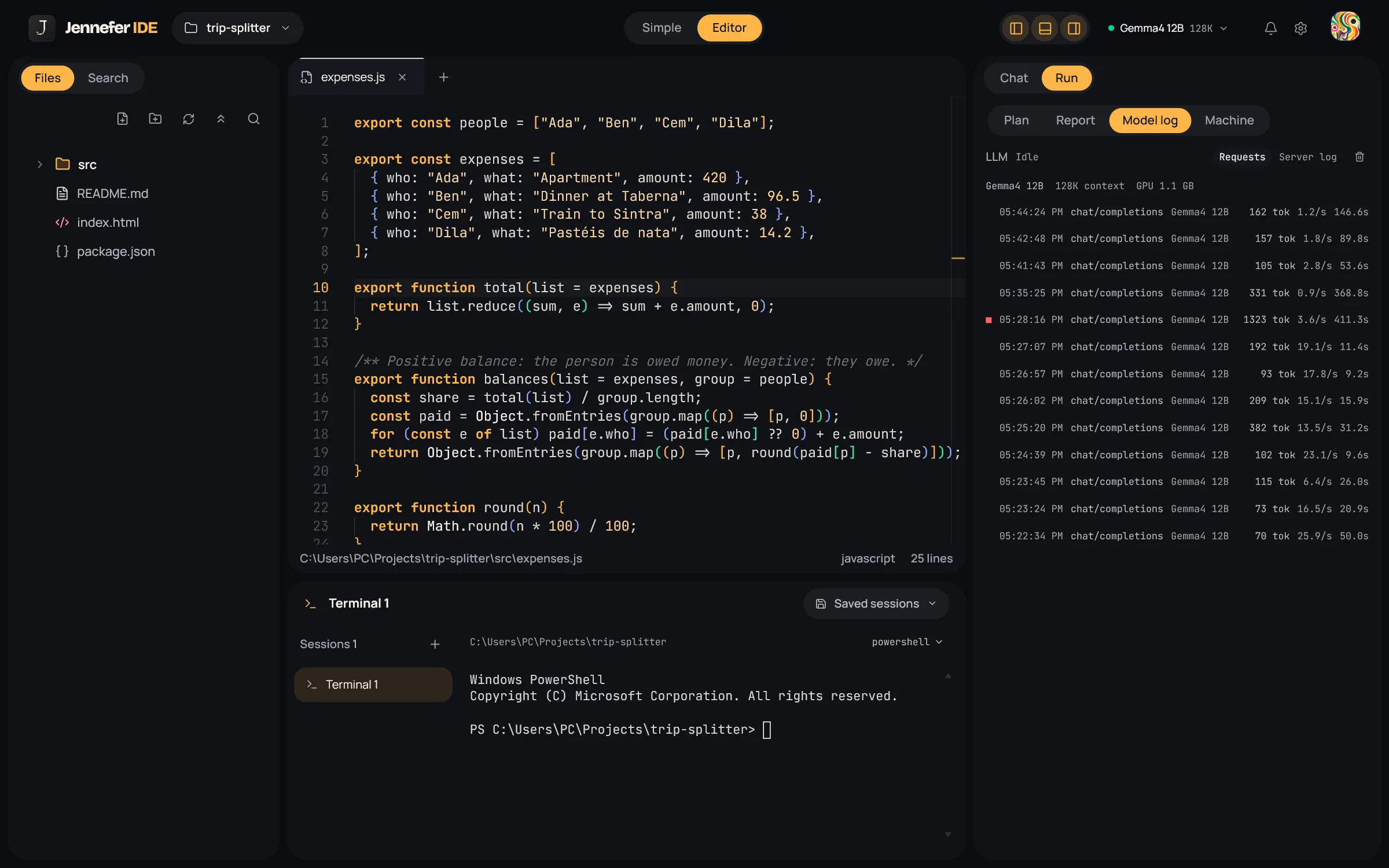
- The status line says Idle, Reading prompt with the seconds so far, or Thinking / Generating with the tokens and the speed.
- The loaded model, its context size and how much of it is on the GPU.
- Requests lists each call with its time, model, tokens, speed and duration. Open one to see the first-token time, prompt and output tokens, the finish reason, any error and a preview of the answer.
- Server log shows the end of the local runtime's log. The trash button clears finished requests.
Machine#
Machine shows live hardware load on this computer.
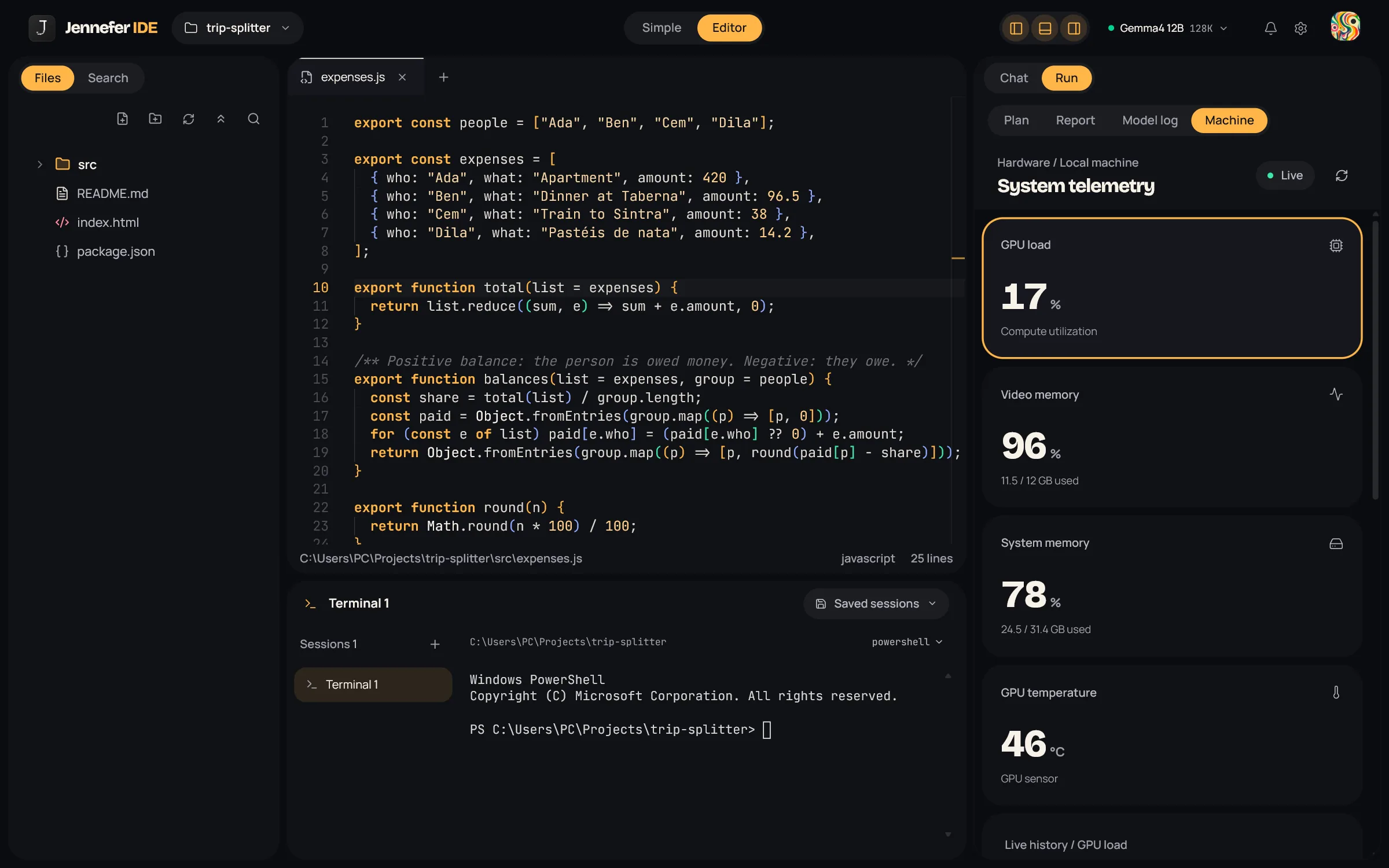
- Cards for GPU load, Video memory, System memory and GPU temperature, with a live history chart.
- The state is Live, Connecting, Connection lost or Offline.
- Memory comes from Windows. GPU values come from
nvidia-smi, so GPU load and temperature need an NVIDIA card.