Hub
Connected apps
Let your own scripts, web apps and desktop apps use the model on your computer through an OpenAI-compatible local API. Register the app, get it approved, turn it on in Hub > Connected apps and allow it.

On this page
Your own tools can ask Jennefer for text and images the same way they would call OpenAI. Jennefer answers with the model in use on this computer, picked in Hub > Models. A command-line script, a web app on localhost or a desktop app can all use it.
What an app can do#
| Endpoint | What it does |
|---|---|
GET /v1/models | Lists one model, jennefer: the model in use on this computer. |
POST /v1/chat/completions | Text generation, OpenAI format, with streaming. Needs the Text permission. |
POST /v1/images/generations | One image per request from your Image pack, returned as b64_json. Sizes from 256 to 1536 pixels, default 1024 × 1024. Needs the Images permission and the Image pack. |
Apps get nothing else: no agents, no files, no terminal and no MCP tools. If a request sends tools, they go to the model as plain text and Jennefer never runs them. The model field is ignored, so the app always gets the model in use. Connected apps never use your endpoint: if every app uses your endpoint, connected apps get an error until you switch back to a model on this computer.
Set it up#
- 1
Register the app
In your account at portal.jennefer.dev/apps, choose Register app. Give it a name, a logo, its purpose, its type (CLI, Web app or Native app), what it needs (Text, Images) and the max answer length in tokens (or No limit). A web app also lists its allowed origins. The form shows a live preview of the permission dialog people will see.
- 2
Wait for review
A person at Jennefer checks every app: that the purpose is clear, the name and logo do not copy another brand, the origins make sense and the permissions match the purpose. You get an email with the decision. A rejection comes with a reason; edit the app and submit again.
- 3
Turn it on in the Hub
Open Hub > Connected apps and turn on the switch on Let your apps use your AI. It is off by default. The status then says On at 127.0.0.1:48488: Jennefer listens on this computer only.
- 4
Connect from your app
Your app asks for access and shows a short code. The Hub comes to the front with a dialog, "<app> wants to use your AI", and the same code. Check that the codes match and choose Allow within 5 minutes. Your app receives a token and calls the API.
Quick start#
The @jennefer-dev/connect package does the whole sign-in for you. It asks Jennefer for access, shows the code, waits for Allow, saves the tokens and renews them. Then you use the normal OpenAI SDK.
// npm install openai @jennefer-dev/connect
import OpenAI from "openai";
import { connect } from "@jennefer-dev/connect";

// First run: shows a code and waits for Allow in Jennefer.
// Later runs: reuses the saved tokens, no dialog.
const jennefer = await connect({ clientId: "jen_app_..." });

const ai = new OpenAI({
  baseURL: jennefer.baseURL,
  apiKey: "jennefer",       // not used; the token comes from jennefer.fetch
  fetch: jennefer.fetch,
});

const reply = await ai.chat.completions.create({
  model: "jennefer",        // ignored: always the model picked in Jennefer
  messages: [{ role: "user", content: "Hello" }],
});
console.log(reply.choices[0].message.content);- Replace
jen_app_...with the client ID from your app page. - Tokens are saved in
.jennefer-connectin your user profile (Node and the CLI), readable only by you on macOS and Linux. In a browser they are kept in memory. - In a browser, add
dangerouslyAllowBrowser: trueto the OpenAI options and show the code to the user withconnect({ clientId, onCode }). - Errors have a
code: for exampleaccess_denied(the user chose Deny),app_not_registered, orjennefer_unreachable(the Engine is not running or Connected apps is off).
How the sign-in works#
You only need this if you write the sign-in yourself, without the package. There is no client secret: the user approves every new connection in Jennefer, and PKCE makes sure only the app that asked can collect the token.
- 1
Your app → Jennefer
Asks for access
POST /auth/requestwith the client ID and a PKCE challenge - 2
Jennefer → Your app
Returns a request ID and a short code
for example
KQ7-4MZ - 3
Jennefer → You
Shows the permission dialog with the same code
- 4
You
Checks that the codes match and chooses Allow
- 5
Your app → Jennefer
Polls for the token every 2 seconds
POST /auth/token, answered withauthorization_pendinguntil Allow - 6
Jennefer → Your app
Returns an access token and a refresh token
- 7
Your app → Jennefer
Calls the API with the access token
Authorization: Bearer jen_at_...
1. Ask for access#
Make a random code_verifier (43 to 128 characters) and keep it. Send its SHA-256, base64url-encoded without padding, as code_challenge. Show the user_code to the user.
/auth/request{
"client_id": "jen_app_...",
"scopes": ["chat"],
"code_challenge": "E9Melhoa2Ow…stw-cM",
"code_challenge_method": "S256"
}{
"request_id": "6f1c…",
"user_code": "KQ7-4MZ",
"expires_in": 300,
"interval": 2
}{
"error": {
"code": "app_not_registered",
"message": "This app is not approved…"
}
}2. Wait for Allow#
Poll every interval seconds with the same request_id and your code_verifier. Keep polling while the answer is authorization_pending. The request expires after 5 minutes.
/auth/token{
"grant_type": "jennefer_request",
"request_id": "6f1c…",
"code_verifier": "dBjftJeZ4CVP…FOEjXk"
}{ "error": "authorization_pending" }{
"access_token": "jen_at_…",
"token_type": "Bearer",
"expires_in": 3600,
"refresh_token": "jen_rt_…",
"scope": "chat"
}{ "error": "access_denied" }3. Call the API#
Use the access token like an OpenAI API key, with the base URL http://127.0.0.1:48488/v1.
import OpenAI from "openai";

const ai = new OpenAI({ baseURL: "http://127.0.0.1:48488/v1", apiKey: accessToken });
const reply = await ai.chat.completions.create({
  model: "jennefer",
  messages: [{ role: "user", content: "Hello" }],
});
4. Renew without a new dialog#
Access tokens last 1 hour. Exchange the refresh token for a new pair. Refresh tokens last 30 days and change on every use, so always save the new one.
/auth/token{
"grant_type": "refresh_token",
"client_id": "jen_app_...",
"refresh_token": "jen_rt_…"
}{
"access_token": "jen_at_…",
"expires_in": 3600,
"refresh_token": "jen_rt_… (new)"
}{ "error": "invalid_grant" }In the Hub: Connected apps#
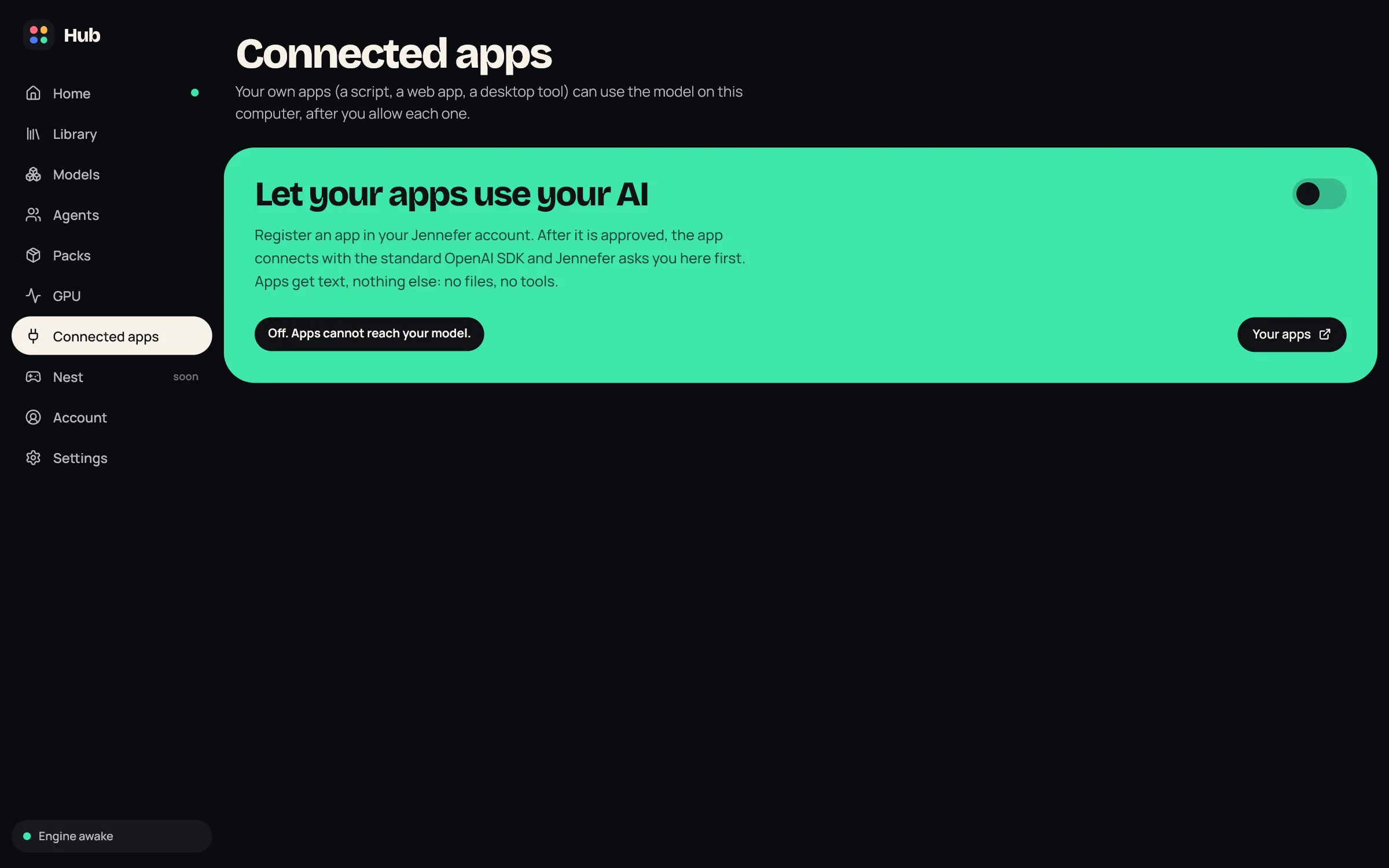
- The switch on Let your apps use your AI turns the local API on and off. The status line says Off. Apps cannot reach your model., Starting, On at 127.0.0.1:48488, or Sign in to Jennefer Hub so your apps can connect.
- Your apps opens the app registration page in your account.
- The model card shows the model your apps get, with Change in Models. If no model is picked, apps get an error that says so.
- Allowed apps lists every app you allowed, with its type, what it may do (Text, Images), how many requests it made today and when it was last used. The trash icon and Remove access end its access at once; the app must ask again to reconnect.
- While an app uses your model, the Hub shows a chip with its name for a few seconds.
While Connected apps is on and at least one app is allowed, the Engine stays awake as long as the Hub runs. Quit the Hub from the tray to stop it. See Engine.
The permission dialog shows the app's name, purpose, type and permissions, who made it, and the code to compare: Check that this code matches the one in your terminal. or the one the app shows. Choose Allow or Deny before the countdown ends.
Limits#
| What | Limit |
|---|---|
| Registered apps | Free 1, every paid plan 10, Team 10 per seat as one shared team pool |
| Requests per app | 60 a minute, 2 text requests and 1 image request at the same time |
| Answer length | Set per app by its owner and reviewed with the app |
| Input | At most 200,000 characters of messages per request |
| Images | Count toward your daily Studio image limit (Free: 100 a day) |
Apps in review, approved or suspended count toward the registered-app limit. Rejected and deleted apps do not. Text requests to the model on this computer are not limited beyond the per-app rate.
Team apps and public apps#
- In a team, a new app belongs to the team. Every member can allow it; only its owner and team admins can change it.
- By default only you (or your team) can allow an app. To let any Jennefer user allow it, for example when you share or sell your app, choose Make public on the app page after it is approved. Public access is a second review. The permission dialog then shows your support contact as the publisher instead of your account email.
Changing an app#
Editing the name, logo, purpose, type, origins or permissions creates a new version that goes to review. The approved version keeps working until the new one is decided. If Jennefer suspends or revokes an app, it stops working on every computer the next time Jennefer refreshes its app list, right away when the Hub is online.
Security#
- The local API listens on
127.0.0.1only. Other computers on your network cannot reach it. - Requests whose
Hostis not127.0.0.1:48488orlocalhost:48488are refused, which stops websites from reaching it through DNS tricks. Browsers get CORS access only from origins an approved app registered. - Jennefer keeps a signed list of your approved apps and checks the signature. Offline, the last list works for up to 7 days.
- Tokens are random and short-lived; only their fingerprints are stored on disk.
- A program already running on your computer could pretend to be one of your apps. That is why every new connection needs your Allow and a matching code, and why you can revoke any app.
Errors#
| Code | Meaning |
|---|---|
not_signed_in | Sign in to Jennefer Hub. |
app_not_registered | The client ID is unknown, or the app is not approved for this account. |
origin_not_allowed | The request came from an address the app did not register. |
invalid_token | The access token expired or is wrong. Use the refresh token. |
consent_required | Access was removed in the Hub. Ask for access again. |
scope_not_allowed | The app is not registered or allowed for this endpoint. |
max_tokens_exceeded | max_tokens is above the app's max answer length. Ask for less, or raise the limit on the app page (it goes to review). |
rate_limited | Too many requests. Wait and retry. |
context_length_exceeded | The messages are longer than 200,000 characters. |
llm_unavailable | No model is picked, every app uses your endpoint instead of a local model, or the local runtime is not set up or could not start. |
image_pack_missing | Install the Image pack in Hub > Packs. |
quota_exceeded | The daily image limit is reached. It resets at 00:00 UTC. |
FAQ#
Can I register an app from inside the Hub?
No. Registration and review live in your account at portal.jennefer.dev/apps. Your apps in Hub > Connected apps opens it.
Can my app choose a model?
No. It always gets the model in use on this computer, picked in Hub > Models.
Does this send my prompts to Jennefer's servers?
No. Requests go from your app to the Engine on your computer and then to the local model. Only the app list and the daily image count come from Jennefer's servers.
Does it work with Cloud sandboxes?
No. The local API serves apps on the same computer as the Hub.