IDE
Notifications
The IDE's bell collects what finishes, fails or needs you: finished runs, approvals and questions, and the address of an app your agents started. Windows notifications are set in Hub > Settings > Notifications.

The bell in the IDE header collects what happens in your agent runs, so you can look away and still know when the agents need you.
The bell#
- It spins while a run is going.
- A number shows how many notifications you have not read.
- Hover it for a summary, for example Something needs your answer · 1 running · 3 unread.
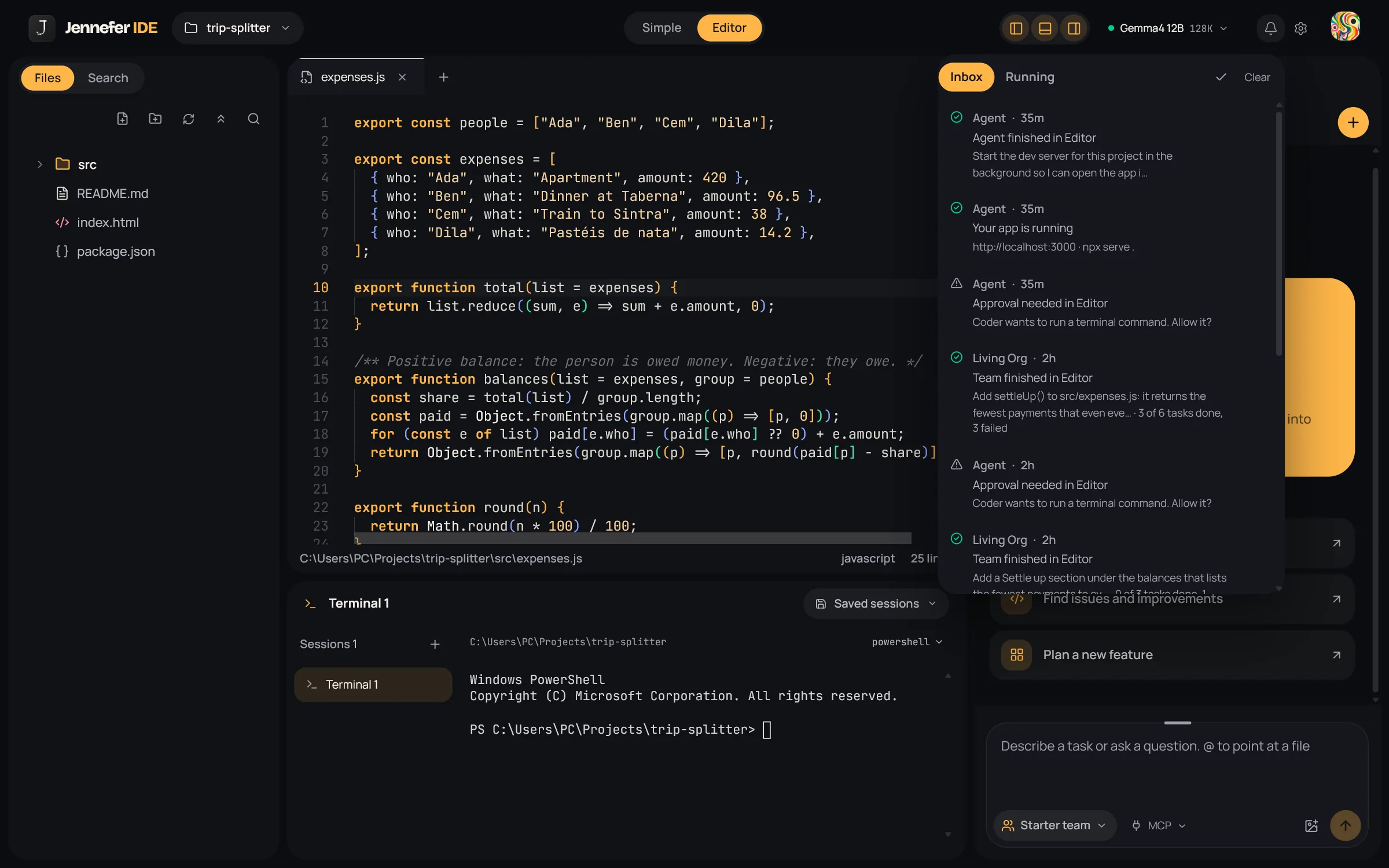
Inbox and Running#
| Tab | What it shows |
|---|---|
| Inbox | Finished runs, failures, questions, approvals and running apps. Use Mark all as read, Clear, or Dismiss on one row. Empty: No notifications yet. Finished work and questions show up here. |
| Running | The agent run in progress, for example Team · Editor, with its progress and Stop. Empty: Nothing is running right now. |
What creates a notification#
| Notification | When |
|---|---|
| Approval needed in Editor | An agent waits for your approval. |
| An agent has a question | An agent asks you something. |
| Team finished in Editor, Agent finished in Editor | A run ended. Team runs show how many tasks were done. |
| stopped: connection lost | The run stopped because the connection to Jennefer was lost. |
| hit an error in Editor | The run ended with an error. |
| Your app is running | An agent started a dev server. It shows the address and the command, for example http://localhost:3000 · npx serve .. |
- Runs you stopped do not notify.
- A short run, under 30 seconds, that you were watching does not notify either.
- Notifications always say Editor, also for runs you started in Simple.
Pop-ups#
A small pop-up also appears when you are not watching the chat. Successes stay for 5 seconds and errors for 9. Questions and approvals stay until you answer them.
Separate pop-ups tell you about your plan, such as a failed payment or a quota that is used up.
Windows notifications#
Every Jennefer app can also show a Windows notification. Clicking one brings that app to the front. Choose which ones you get in Hub > Settings > Notifications. The choice is kept by the Engine and used by every app.
| Setting | What it covers |
|---|---|
| Show notifications | Turns them all on or off. |
| Questions and approvals | An agent asks you something or waits for your OK. |
| Finished work | A long task, render or setup is done, or your app is running. |
| Problems | Something failed or stopped. |
| Updates | A new version of the Hub or an app is ready. |
| Also when the app is in front | Off: only when the app is in the background or minimized. |
- Send test shows one notification now. If nothing appears, check Do not disturb in Windows Settings > System > Notifications.
- If Windows blocks notifications, the Hub says so and offers Open Windows settings.
- These settings change Windows notifications only. The bell's Inbox still collects everything.
FAQ#
Do other apps have a bell?
No. The Hub shows what runs right now on its Home screen, and Studio shows each job on its card. Jennefer Mobile can send push notifications for runs and approvals.
Can I turn notifications off?
Yes. Turn off Show notifications in Hub > Settings > Notifications, or only the kinds you do not want. You can clear the Inbox at any time.