Getting started
Models
Download models from the Jennefer catalog in Hub > Models, check how they fit your hardware, set the context window and thinking, and pick the Hub default that apps use unless they pick their own.

On this page
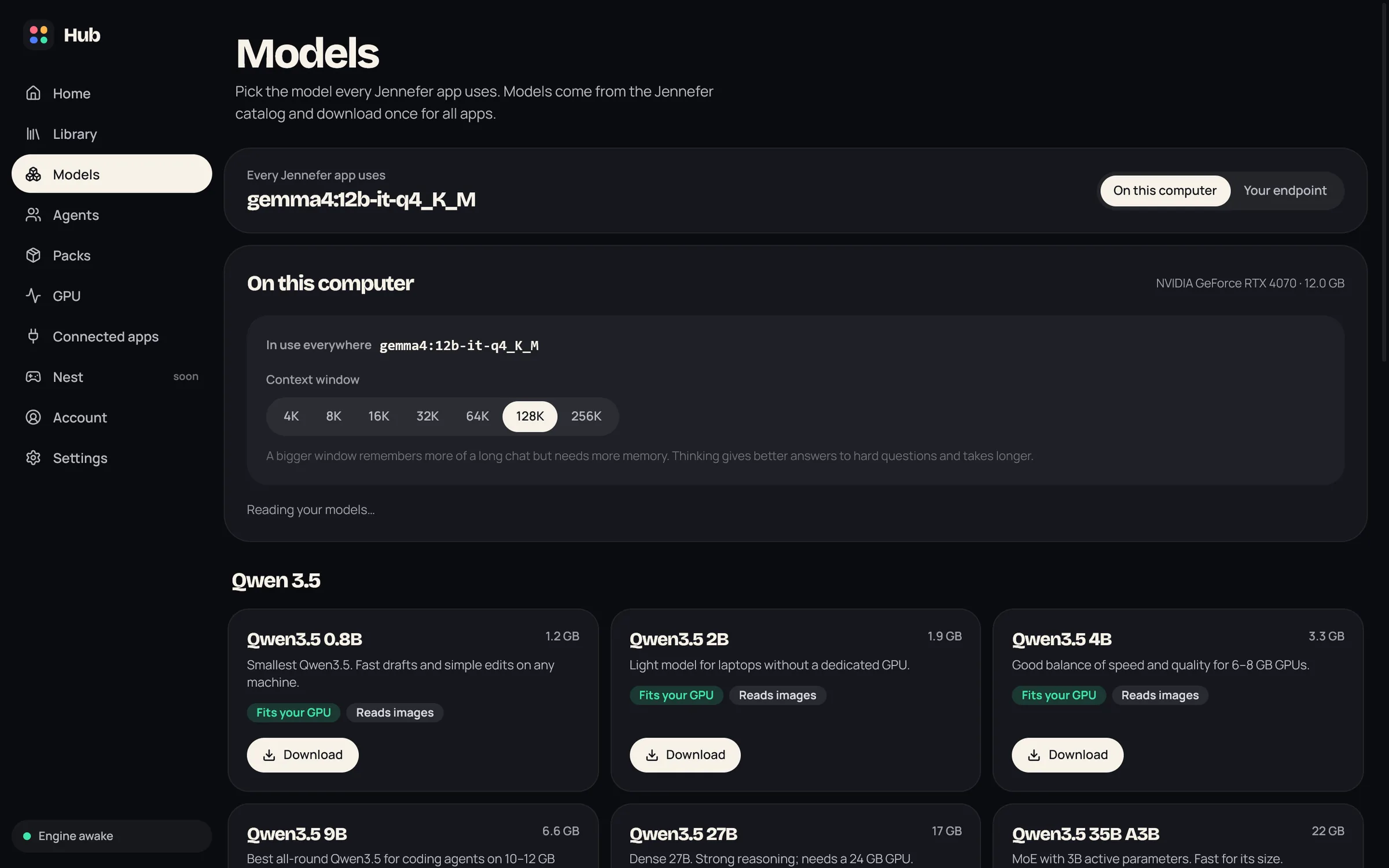
Hub > Models is where you download models and pick the Hub default: the model an app uses when neither the app nor the window picked another one. Each app, and each window or conversation, can pick its own model. See Model and effort per app.
A model can come from two places:
- On this computer: a model from the Jennefer catalog that runs on your own GPU or CPU.
- Your endpoint: a cloud model that you connect with your own key, after a short approval. See Your endpoint.
The Hub default#
- The top card shows the Hub default and its name. Switch it between On this computer and Your endpoint, then choose Use this computer or Use your endpoint.
- Below it, Each app gives an app its own model and effort, and Open now shows which window uses what. See Model and effort per app.
Set up local models#
Local models run in the local runtime, which the Engine manages for every app. You set it up once.
- 1
Open Hub > Models
The card Set up local models explains the one-time setup. Choose Set up now.
- 2
Wait for the setup
The runtime downloads and unpacks. If the old Jennefer desktop app already set it up, nothing is downloaded again and the card says Reusing the files you already have.
- 3
Download a model
Pick a model in the catalog below and choose Download. You can Pause a download and start it again later.
- 4
Use it
Choose Use on the installed model. While the Hub default is On this computer, the top card now shows its name.
The catalog#
Only models from the Jennefer catalog can be downloaded and used. The catalog is grouped by family:
| Family | Sizes |
|---|---|
| Qwen 3.5 | 0.8B, 2B, 4B, 9B, 27B, 35B A3B |
| Qwen3 Vision | 2B, 4B, 8B, 30B A3B |
| Gemma 4 | E2B, E4B, 12B, 26B A4B, 31B |
| Liquid AI | LFM2.5 8B A1B, LFM2 24B A2B |
Each card shows the download size and a short description. Models that understand pictures are marked Reads images. You need one of them to attach images in a chat. The catalog can change without a Hub update: the line under it shows Jennefer catalog version with Check for updates.
Hardware fit#
Every card has a fit label for this computer, so you can see how a model will run before you download it:
| Label | Meaning |
|---|---|
| Fits your GPU | The whole model fits in your GPU memory. This is the fastest. |
| Partly on CPU, slower | Part of the model runs on the CPU. |
| Runs on CPU, slow | The model runs on the CPU. |
| Too big for this computer | The model does not fit. Pick a smaller size. |
Installed models#
The On this computer section lists your downloaded models with their size, parameters and quantization, and shows your GPU and its memory. A line shows where the models are saved and the free space: Saved in a folder. To move them to another drive, see Where Jennefer keeps files.
- Use picks the model on this computer. While the Hub default is On this computer, it is the Hub default too. The picked model shows In use.
- In memory shows a loaded model and how much GPU memory it takes. Unload frees that memory, also when a window picked the model. The model stays on disk and loads again on the next request.
- The trash icon deletes a model from disk after you confirm Delete from disk?.
- Models from outside the catalog show Not in the Jennefer catalog. They cannot be used, only deleted.
Context window and thinking#
The card at the top of On this computer sets these for the model you Use. Each local model keeps its own settings, also when a window picks it.
- Context window: from 4K to 256K, up to the model's own maximum. A bigger window remembers more of a long chat but needs more memory. A window that would nearly fill your GPU asks first, and if the model does not load, the Hub switches back by itself.
- Thinking: Off or On, for models that can think. Thinking gives better answers to hard questions and takes longer. A window's effort can turn it off or on for that window.
- If your GPU leaves little room for agents, the Hub suggests a smaller model that fits.
Your endpoint#
Instead of a local model, apps can use a cloud model with your own key: OpenAI, Anthropic, Amazon Bedrock, Gemini and other APIs. Each address needs a short request and our approval. You can save several models, each with its own effort and context window. See Your endpoint, and Model and effort per app to give an app or a window an endpoint model.
Which model should I choose?#
- A good start: Qwen 3.5 9B is the best all-round choice for coding agents on a 10 to 12 GB GPU.
- Small GPU or no GPU: pick a smaller model that shows Fits your GPU or Partly on CPU, slower.
- Images in chats: pick a model marked Reads images.
- Long chats and big projects: raise the context window, but watch the fit label.
FAQ#
Can each app use a different model?
Yes. Set an app default in Hub > Models > Each app, or pick a model in the app for one window or conversation. See Model and effort per app.
Will Jennefer touch my own Ollama or LM Studio?
No. The Engine runs its own runtime with its own models, on its own port.
Can I use a model that is not in the catalog?
Not on this computer. Use Your endpoint for other models, once approved.
My model is slow or fails to load.
Pick a smaller model or a smaller context window. See Troubleshooting.