Studio
Studio overview
Jennefer Studio makes images, videos, designs and 3D models on your own computer and reads brands from websites. Learn the screens, the composer, packs, the GPU queue, daily limits and where files go.

On this page
Jennefer Studio is a separate app for making visual work on your own computer. Images and videos are made on your GPU with packs. Designs and 3D models are written by the Hub default model from Hub > Models. Studio has no model picker of its own. See Model choice.
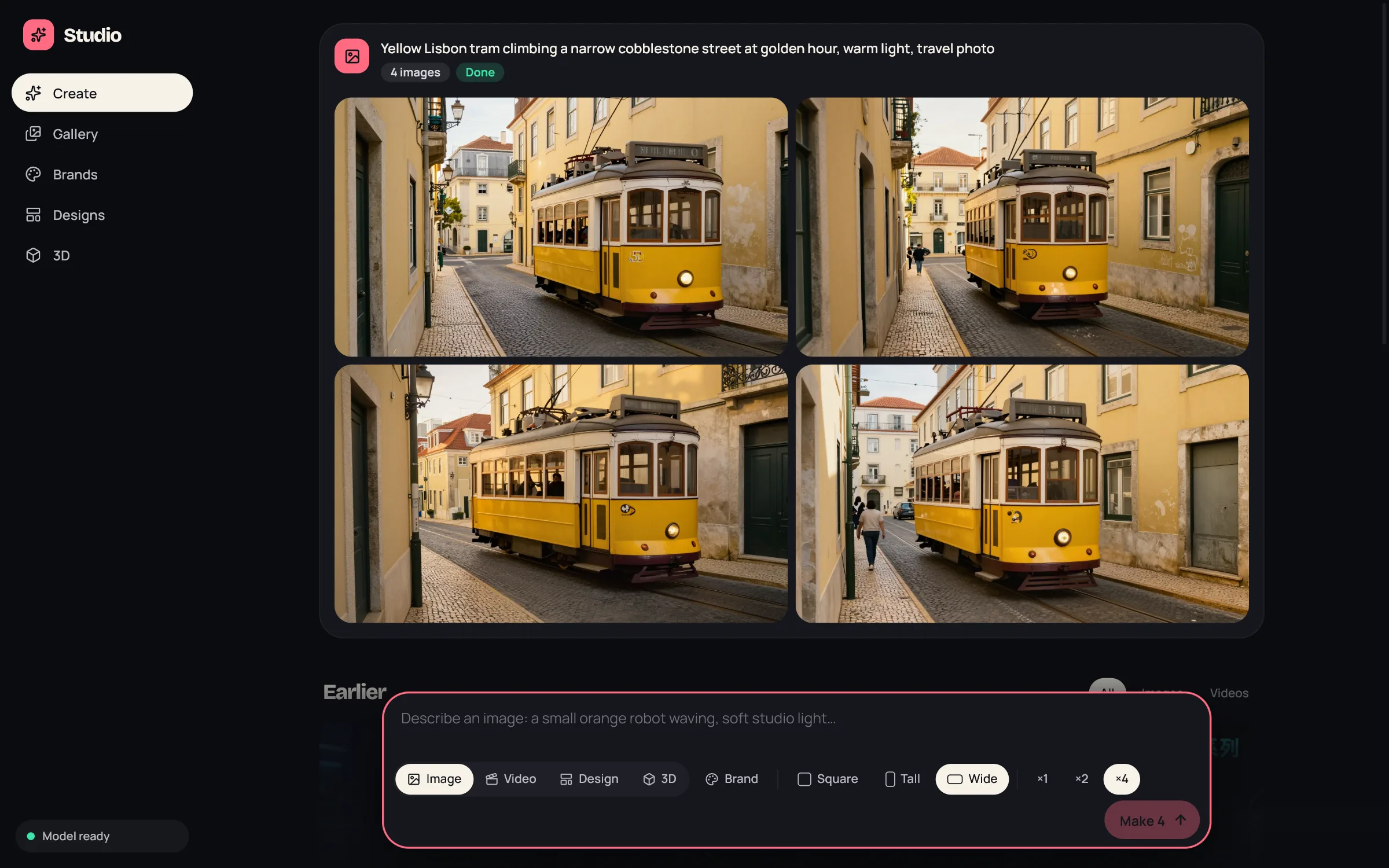
Screens#
| Screen | What it is for |
|---|---|
| Create | One feed of everything you make, newest first, with the composer at the bottom. Older work is in Earlier, filtered by All, Images and Videos. |
| Gallery | Everything you made: all your images and videos. |
| Brands | Read a brand from a website and keep it. See Brands. |
| Designs | Posts, ads and covers. See Designs. |
| 3D | Simple 3D models. See 3D models. |
The bottom of the sidebar shows the state of the GPU: GPU free, GPU busy, Model ready, Waking the Engine or Engine unreachable. On the Free plan it also shows how many images are left today.
The composer#
Pick a mode in the composer: Image, Video, Design or 3D. Describe what you want and press Enter. The button says what will happen, for example Make 4, Edit, Make video, Design or Build.
- Brand: in every mode except 3D, pick a saved brand, No brand, or Read a brand from a website. Studio remembers your choice.
- If a pack is missing, the composer says so, for example Images need the Image pack., with Get it in Hub.
- On Free, the composer shows how many images or videos are left today.
Cards and the queue#
Every request becomes a card in the feed. A card shows where the job is: Waiting in line, Waiting for the GPU, Loading the model, Making it with the step count, Finishing up, Saving, then Done, Did not work or Cancelled. Images develop from a blurred preview while they are made.
- Use the X on a card to cancel it, and Try again after an error.
- Only one GPU job runs at a time, across all apps. See GPU. At most 20 jobs can wait.
- A card made for another app shows From that app.
Send to another app#
Results have Send to: images, videos and designs go to the IDE, Cloud or Workshop, and 3D models go to the IDE or Workshop. Show in folder opens the file. The same works from Hub > Library.
Studio also receives: when you send it an image from the Hub, a bar says Sent from and offers Edit it or Animate it. A brand offers Design with it or Use for images.
GPU and your chat model#
- Images and videos need a supported GPU. NVIDIA cards use CUDA. Other cards on Windows use Vulkan, which is slower.
- When a job starts, the chat model is unloaded from the GPU. The next chat request loads it again.
- The image engine stops after 5 idle minutes and frees the GPU.
- If the GPU runs out of memory, the card says The GPU ran out of memory. Try a smaller size or a shorter clip, or close other GPU apps.
Daily limits#
| Plan | Images | Videos |
|---|---|---|
| Free, Code Pro, Workshop Pro | 100 a day | 3 a day |
| Studio Pro, All Apps Pro, Team | Unlimited | Unlimited |
- Images and videos are counted separately and reset at 00:00 UTC.
- Only successful results count. A failed or cancelled job is free.
- Every image and video job checks in with Jennefer first, so you must be signed in and online. Signed out, the card says Sign in to Jennefer Hub to make images and videos.
- At the limit, the composer says You used today's images. More tomorrow, or upgrade for unlimited.
- Designs, 3D models and brands have no daily limit. Photos inside designs, and images made for connected apps, count as images.
Where files are saved#
| Folder in your user profile | What it holds |
|---|---|
.jennefer/images | Images, one folder per day, as PNG |
.jennefer/videos | Videos, one folder per day, as WebM |
.jennefer/studio/designs | Designs with all their versions, and a PNG of each |
.jennefer/studio/models | 3D models as GLB, with a PNG |
.jennefer/design-systems | Saved brands |
Everything also shows in Hub > Library. Studio has no export button: use Show in folder, Copy image or Send to.
FAQ#
Do my prompts or images go to a server?
No. Images and videos are made on your GPU and saved on your computer. Only the check that counts your daily use reaches Jennefer. Designs and 3D use the Hub default model, which is local unless it is a model on your endpoint.
Can I use Studio without a GPU?
Images and videos need a supported GPU. Designs, 3D models and brands work with the Hub default model.
Why did my chat get slower after making an image?
The chat model was unloaded to make room. The first message after that loads it again.