Workshop
Workshop
Jennefer Workshop turns one sentence into a small Next.js and Tailwind app with a live preview. Apps can use your own model and save data on your computer.

On this page
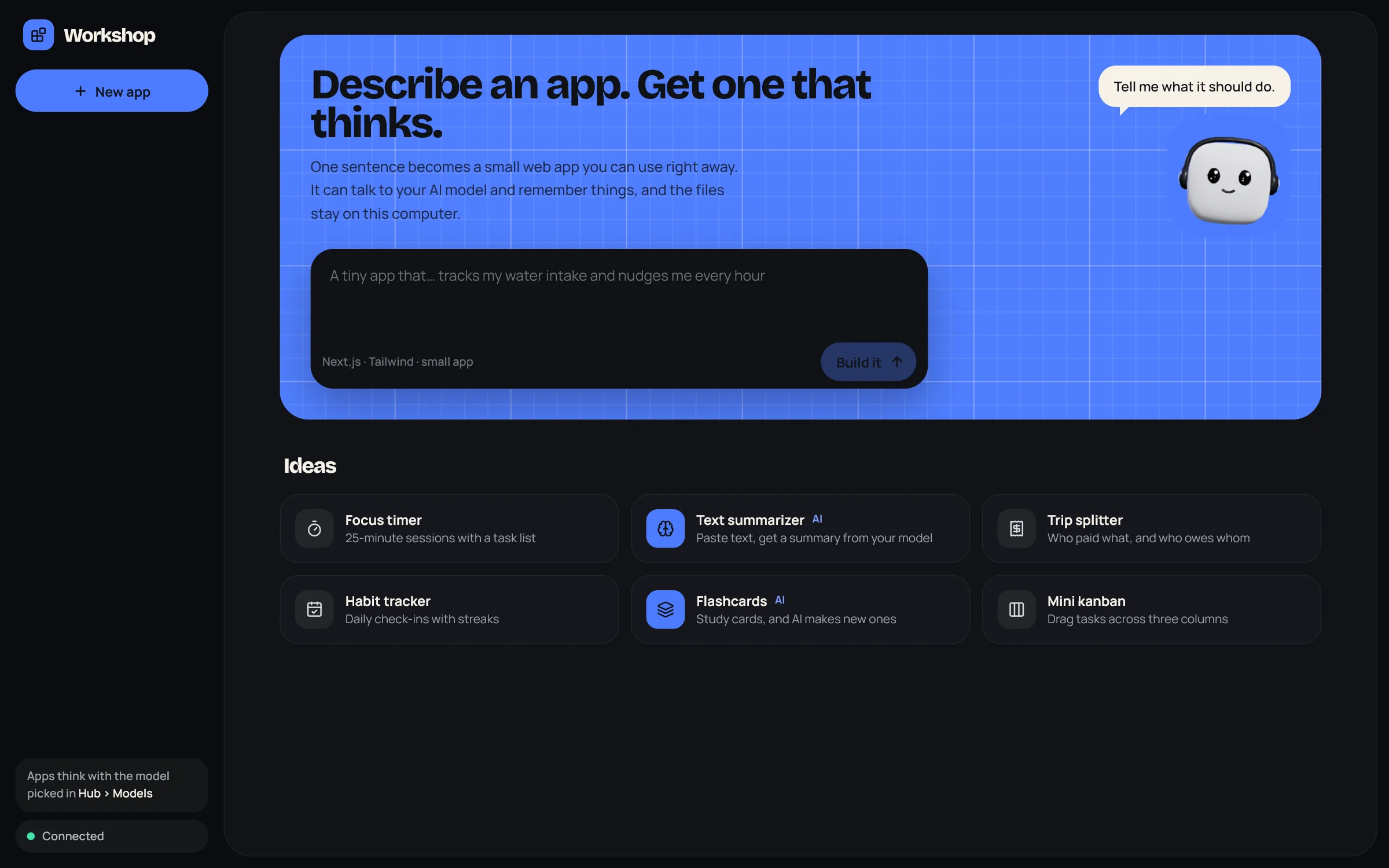
Jennefer Workshop is a separate app that turns one sentence into a small web app you can use right away: a timer, a tracker, a summarizer, a little tool you need today. You watch the app appear in a live preview and change it by chatting.
Before you start#
- Sign in in the Hub. Workshop is blocked while you are signed out: Sign in to build apps. with Sign in with Jennefer Hub.
- Install the Workshop pack. Without it, Home says Install the Workshop pack first with Open Packs in Hub. The pack brings Node.js and the app building blocks. See Packs.
- Pick a model. The model chip next to the build box and the change box sets the model and effort for this window, and Make this the Workshop default saves it. Without a pick, Workshop uses its default from Hub > Models, then the Hub default. See Model choice.
Build an app#
- 1
Describe it
On Home, write what the app should do, for example "tracks my water intake and nudges me every hour", and choose Build it. Or pick an idea: Focus timer, Text summarizer, Trip splitter, Habit tracker, Flashcards or Mini kanban.
- 2
Watch it come together
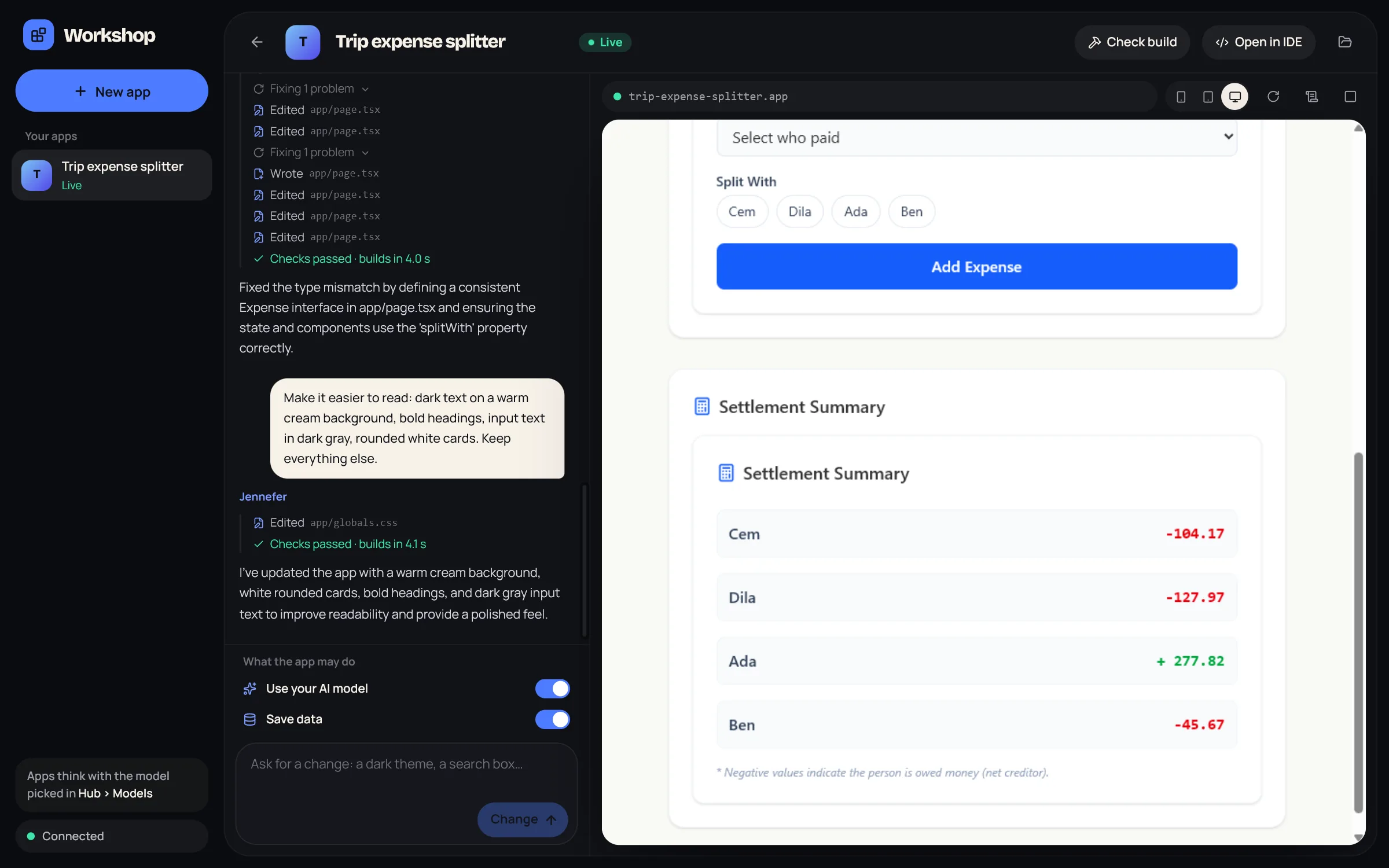
Workshop creates the app and its agent starts writing files. The workbench lists each step: Read, Wrote, Edited, Searched for, Created folder. The preview starts at the same time.
- 3
Checks run by themselves
When the agent finishes, Workshop checks the app's rules and builds it as static files. If something fails, it fixes it by itself, up to 2 times, and shows Checks passed with the build time, or how many problems are left.
- 4
Change it
Type in Ask for a change: a dark theme, a search box… and choose Change. Each message is a new short run on the same app. Stop ends a run.
Each build shows its tokens and, on your endpoint, its estimated cost. While a build waits for the GPU or the model is loading, Workshop says so.
The building agent can read, search, create and edit files only in the app's folder. It cannot run commands, delete or move files. If it needs to know something, its question shows in the workbench with answer buttons or Type an answer.
The app view#
- Preview: the live app, with an address bar. Switch between Phone (390 px), Tablet (820 px) and Full width. Reload, Show output for the server log, and Stop the preview. A stopped preview shows Start preview.
- Check build builds the app as static files to make sure it works outside the preview.
- Open in IDE sends the app's code to the IDE, so you can keep developing it there. See Library.
- The folder icon, Show the app folder, opens it on disk.
- Click the app's name to rename it.
One preview runs at a time, on your computer only, on a port from 48495 to 48499. It starts when you open an app and stops after 10 minutes without use.
Apps that use your AI#
A Workshop app can call your model, for example to summarize text or make flashcards. Requests go to the model picked in Jennefer Hub, which can be a model on your computer or your endpoint model. The app never picks a model or an address. Two switches under What the app may do control this:
| Permission | What it allows |
|---|---|
| Use your AI model | Text requests to your model: at most 30 a minute, 2 at once, and 4,096 tokens per answer. |
| Save data | Up to 5 MB on this computer, kept until you delete the app. Apps have no database and no server code. |
While the app talks to your model, the preview shows a chip such as Thinking or the number of AI requests. If a permission is off, the chip says Turn on “Use your AI model”.
What a Workshop app can be#
- Next.js, React, TypeScript and Tailwind, built as static files.
- Up to 5 pages and 25 files, at most 400 lines per file and 300 KB of source.
- Only the preinstalled packages: lucide-react, clsx, zustand, date-fns, recharts, framer-motion and Jennefer's AI helper.
- No server code, no API routes and no network calls.
Builds per day#
| Plan | Builds a day |
|---|---|
| Free, Code Pro, Studio Pro | 10 |
| Workshop Pro, All Apps Pro, Team | 100 |
Every message you send counts as one build. Automatic fixes do not count, and failed or cancelled builds are given back. Builds reset at 00:00 UTC.
Your apps#
Apps are listed under Your apps, marked Live while their preview runs and Uses AI when they call your model. Deleting an app removes its files, its data and its chat. Apps are saved in .jennefer/workshop/apps and show in Hub > Library.
Workshop also receives from other apps: images, videos, designs and 3D models are copied into an app's public folder with Add to the app, and a brand can Restyle an app.
Where the work happens#
- App files, the preview and saved data stay on your computer.
- The building agent runs through Jennefer's servers, like agents in the IDE, and uses your model. You need to be signed in and online to build.
- An app's own AI requests go through the Engine on this computer to the model picked in Jennefer Hub. With an endpoint model, they go on to your provider.
FAQ#
Can I use another framework?
Not in Workshop. It always uses Next.js and Tailwind, so builds stay fast and checkable. Use the IDE for anything else.
Can I run an app outside Jennefer?
Use Open in IDE or the app folder. Outside Jennefer, the app's AI features ask once for an OpenAI-compatible address.
Can I build while my IDE agents work?
No. One agent run per account can run at a time. Finish or stop the other run first.