Getting started
Introduction
Jennefer is a family of Windows apps that share one account, your models and your agent teams. Learn what each app does, how the Hub and the Engine fit together, and how to get started.

On this page
Jennefer is a family of separate desktop apps that work together. Jennefer Hub is the home for all of them: you sign in there once, download models and pick the default one, build your agent teams and install the apps you want. A background service, the Jennefer Engine, runs your local models and shares them with every app.
There is no all-in-one app. Each app does one job and opens in its own window, and the Hub connects them.
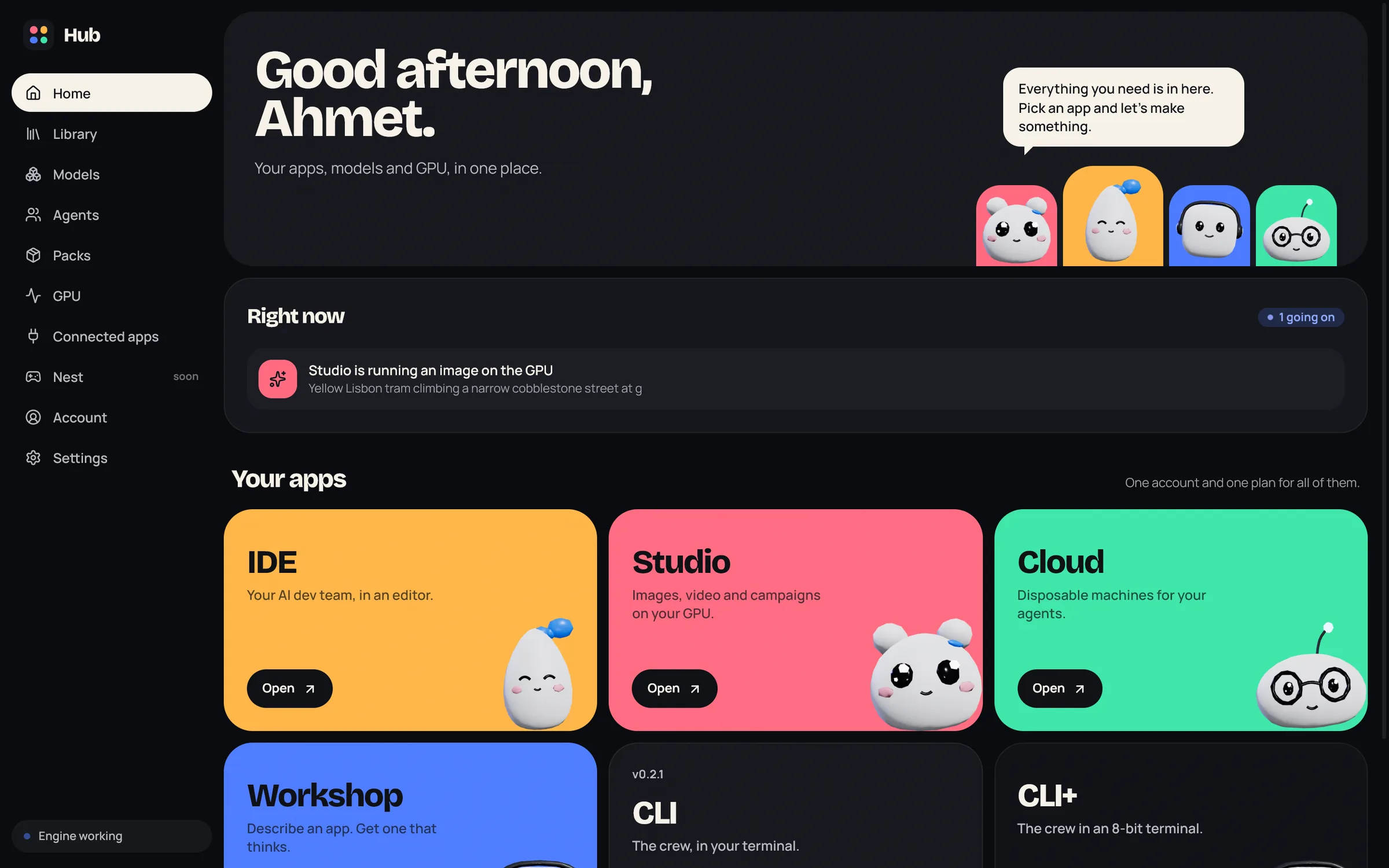
The apps#
How it works#
- One sign-in. You sign in once in the Hub, in your browser. Every Jennefer app on the computer then uses that account and plan. See First launch.
- Models for every app. You download models and pick the Hub default in Hub > Models. Each app can have its own default, and each window or conversation can pick its own model and effort. See Models and Model and effort per app.
- One Engine. The Engine runs your local models, the GPU queue, packs and MCP servers in the background. It starts when an app needs it and goes to sleep when the last app closes.
- Shared agent teams. You build teams in Hub > Agents and choose which team each app uses. See Agent teams.
- Hosted agent runtime. Planning and the agent loop run on Jennefer's servers. They reach your model, files and shell only through the app on your computer, which checks every request. See Privacy and security.
Quick start#
- 1
Install Jennefer Setup
Download Jennefer Setup from your account and run it. It installs Jennefer Hub for your user account, without administrator rights. See Installation.
- 2
Sign in in the Hub
Open Hub > Account and choose Sign in. Your browser opens, and the Hub updates by itself when you are done.
- 3
Pick a model
Open Hub > Models, choose Set up now for the local runtime, then download a model that fits your GPU and choose Use. See Models.
- 4
Install an app
On Hub > Home, choose Install on the IDE card, then Open.
- 5
Give your agents a task
In the IDE, open a project folder and describe what you want. Approve commands when the cards appear. See Chat.
FAQ#
Do I need a paid plan?
No. Free includes every app's basic limits, and local models are never limited on any plan. Paid plans raise the limits of the apps they cover. See Plans and account.
Does my code leave my computer?
Your files stay on your computer and are read and written there by the app. Because the agent runtime is hosted, the content agents work on passes through Jennefer's servers in transit. Read Privacy and security.
Which operating systems are supported?
Windows 10 and 11, 64-bit. Jennefer Mobile runs on Android.
Where did Studio, Workshop and Cloud go in the IDE?
They are separate apps now. Install them from Hub > Home when they open for your account.