Hub
Hub overview
Jennefer Hub is the home of every Jennefer app: sign in, install and update apps, manage models and their cost, build agent teams, manage packs, follow the GPU and find everything you made.

Jennefer Hub is the first app you install and the one that holds everything together. It installs, opens and updates the other apps. It also holds the settings they share: your account, models, agent teams, packs, MCP servers and notifications.
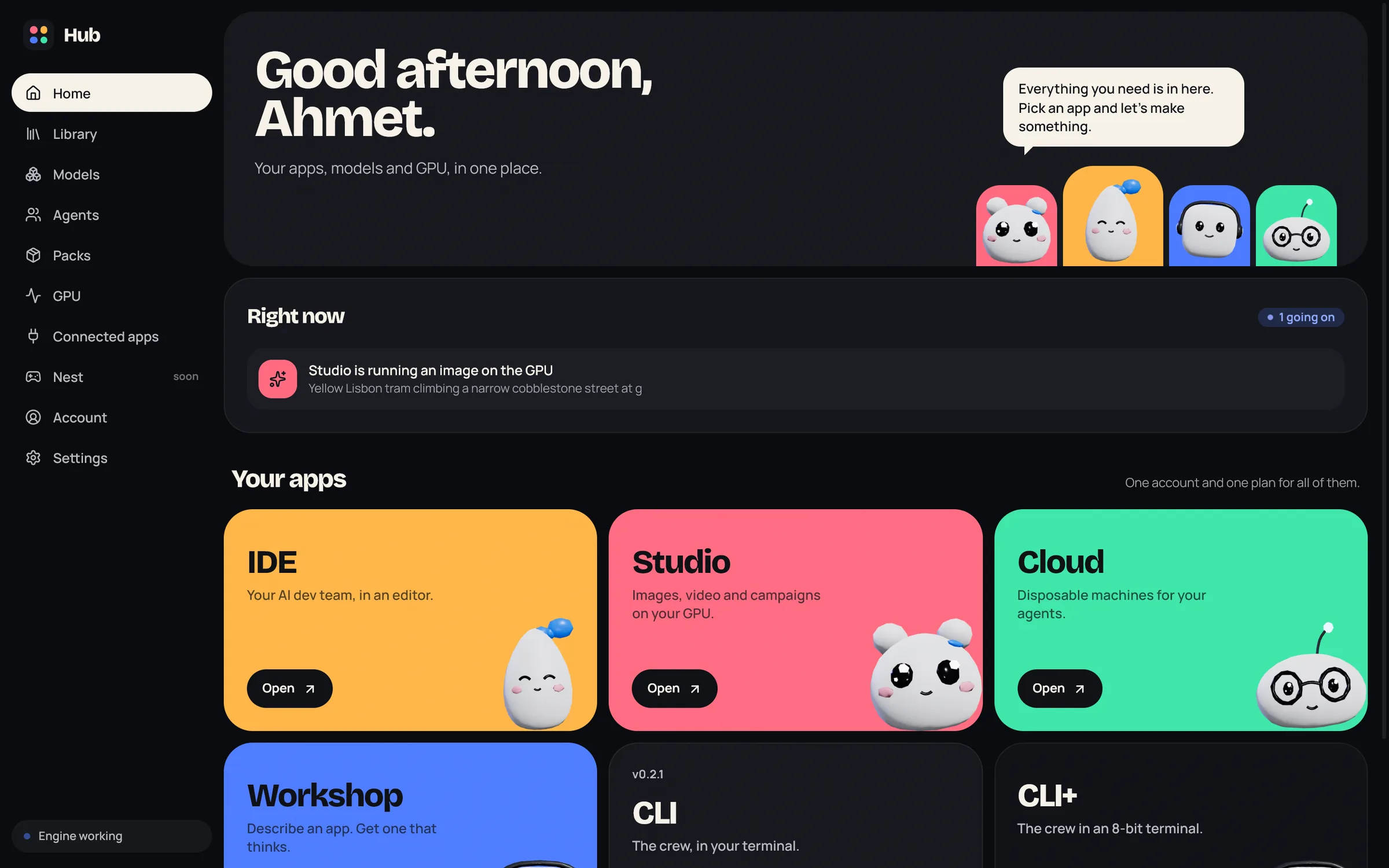
Screens#
The sidebar on the left lists the screens. The Hub remembers the last one you opened.
| Screen | What it is for |
|---|---|
| Home | What runs right now, and your apps with Install, Open and Update. See Installation. |
| Library | Everything you made in any app, with Send to another app and optional cloud backup. See Library. |
| Models | Download models, pick the Hub default and give each app its own model. See Models and Model and effort per app. |
| Usage | Tokens of every app, and the estimated cost of your endpoint. See Usage and cost. |
| Agents | Your agent teams and which team each app uses. See Agent teams. |
| Packs | Image, video and app-building packs that run on this computer. See Packs. |
| GPU | Who holds the GPU, and the queue of jobs. See GPU. |
| Connected apps | Let your own apps use the model on this computer. See Connected apps. |
| Nest | The Nefer Nest pet game. It is marked soon and is not available yet. |
| Account | Sign in, your plan, Cloud hours and Credits. See Plans and account. |
| Settings | The Engine, storage, web access, notifications, privacy, phone access, MCP servers, Hub updates and app keys. See Settings in the Hub. |
A green dot on Home means an app update is waiting. A green dot on Settings means a Hub update is waiting.
Home#
- Right now shows what is happening on this computer: the local runtime being set up, a model downloading, an app using the GPU, or an app waiting for it. When nothing runs it says All quiet. Nothing is running or downloading.
- Your apps lists IDE, Studio, Cloud, Workshop, Hangar and CLI, each with a status chip (Available, Closed beta or Coming soon) and its button. CLI+ appears only for accounts that have access to it.
- If the local runtime is not set up yet, Home shows Set up local models.
Settings in the Hub#
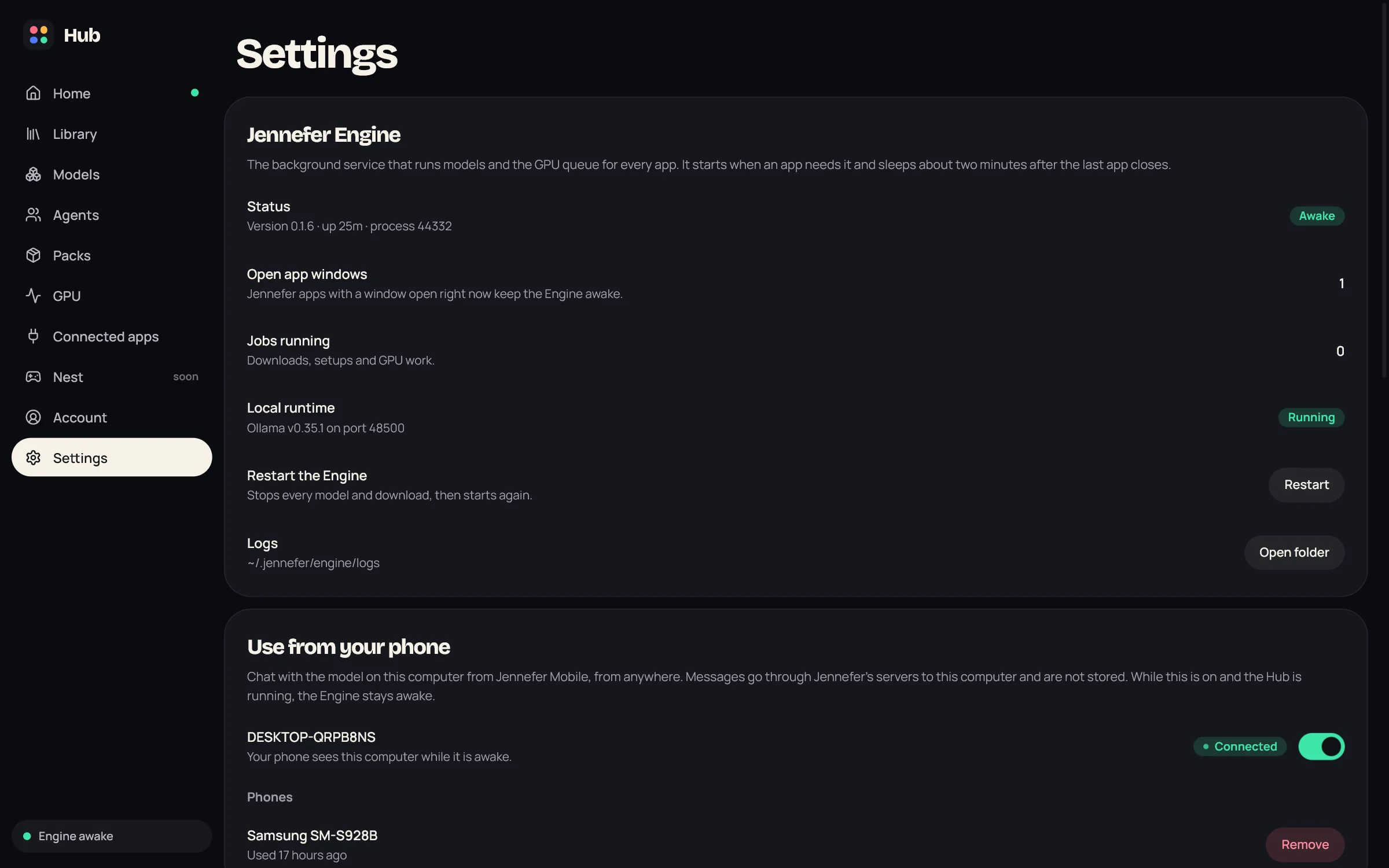
| Section | What it does |
|---|---|
| Jennefer Engine | Status (Awake, Waking, Unreachable or Stopped), Stop or Start, open app windows, jobs running, the local runtime, Restart and Logs > Open folder. See Engine. |
| Storage | Where apps, models, Studio packs and the local runtime are kept, with Move to another drive. See Where Jennefer keeps files. |
| Agents and the web | Web access for agents: Off, Ask or On. Agents do not search the web; they ask you for a link and read that page. See Agents and the web. |
| Notifications | Windows notifications from every Jennefer app: Show notifications, then Questions and approvals, Finished work, Problems and Updates, Also when the app is in front and Send test. |
| Use from your phone | Lets Jennefer Mobile chat with the model on this computer, and lists the phones you allowed. See Mobile. |
| MCP servers | Tool servers the Engine runs for your apps. See MCP servers. |
| Hub | The Hub version with Check for updates, Start with Windows, and the release channel. |
| Privacy | Share usage data for every Jennefer app on this computer, off by default, and What is sent with the events exactly as they leave. See Privacy and security. |
| Jennefer apps on this computer | Each app's key for the Engine. Remove key signs that app out of the Engine until it opens again. |
Tray and start-up#
- Closing the Hub window keeps the Hub in the tray. Click the tray icon, or choose Open Jennefer Hub, to bring it back. Quit in the tray menu closes it.
- Start with Windows in Settings > Hub opens the Hub quietly in the tray when you sign in to Windows. It is off unless you turn it on.
- Opening the Hub again while it runs brings the open window to the front.
- Apps open the Hub on the right screen when they need it, for example Open Hub from the IDE goes to Models or Agents.
FAQ#
Do I need to keep the Hub open?
No. Apps start the Engine themselves when they need it. Keep the Hub running only for Connected apps, phone access and launched Hangar bots, which need the Engine to stay awake.
Where do I choose which notifications I get?
In Hub > Settings > Notifications. It covers the Windows notifications of every Jennefer app. The IDE also keeps its own inbox.
Where are Studio, Workshop and Cloud?
They are separate apps. Install them from Home when they open for your account.