Getting started
Installation
Install Jennefer with Jennefer Setup: requirements, the download, where Jennefer installs, how the Hub installs and updates every app, repair and uninstall.

On this page
You install Jennefer in two steps. Jennefer Setup installs Jennefer Hub. The Hub then installs, opens and updates every other app you choose. Everything installs for your user account only, without administrator rights.
Requirements#
| Requirement | Details |
|---|---|
| Operating system | Windows 10 or 11, 64-bit. macOS and Linux are not supported. |
| Access | A Jennefer account with a verified email address and access to the closed beta. Without access, join the waitlist on jennefer.dev. |
| Connection | Internet access for sign-in, downloads and agent runs. |
| Disk space | Each local model takes 1.2 to 22 GB. Studio packs take 7 to 24 GB each. They can live on another drive. See Models, Packs and Where Jennefer keeps files. |
| Graphics (optional) | A GPU is recommended for local models. NVIDIA cards use CUDA. AMD and Intel cards use Vulkan. Without a GPU, small models run on the CPU, more slowly. Image and video packs need a supported GPU. |
Download Jennefer Setup#
- 1
Sign in to your account
Open portal.jennefer.dev/download and sign in with your Jennefer account.
- 2
Download
Choose Download for Windows. The file is Jennefer Setup, a small installer.
- 3
If Windows warns you
During the private beta Windows may show a SmartScreen notice. Choose More info, then Run anyway. Jennefer installers are code-signed.
What Setup does#
Setup opens with Your crew is ready to move in.
Install to#
Under Install to, pick where Jennefer goes: a drive, with its free space, or Choose a folder. A drive becomes a Jennefer folder on it, for example D:\Jennefer, and the Hub, your apps, models and Studio packs go there. Picking the Windows drive keeps the default places in your user folder. See Where Jennefer keeps files.
Choose Install Jennefer. Setup then:
- Downloads Jennefer Hub, the latest stable version.
- Checks the signature. Setup only runs files that Jennefer signed. A file that does not match is not installed.
- Installs the Hub for your account, in the place you picked. The Hub brings the Jennefer Engine with it.
When it is done you see You're all set. Choose Open Jennefer Hub. You can find the Hub later in the Start menu and in the tray.
If something goes wrong, Setup shows That didn't work. with the reason, and nothing is installed. Check your connection and choose Try again.
Repair#
If the Hub is already installed, Setup says Jennefer is already here. Choose Open Jennefer Hub, or Repair to download and install the Hub again. Your apps, models and settings stay. Repair keeps the Hub where it is and shows Installed in its folder; to move models and packs, use Hub > Settings > Storage.
Install apps from the Hub#
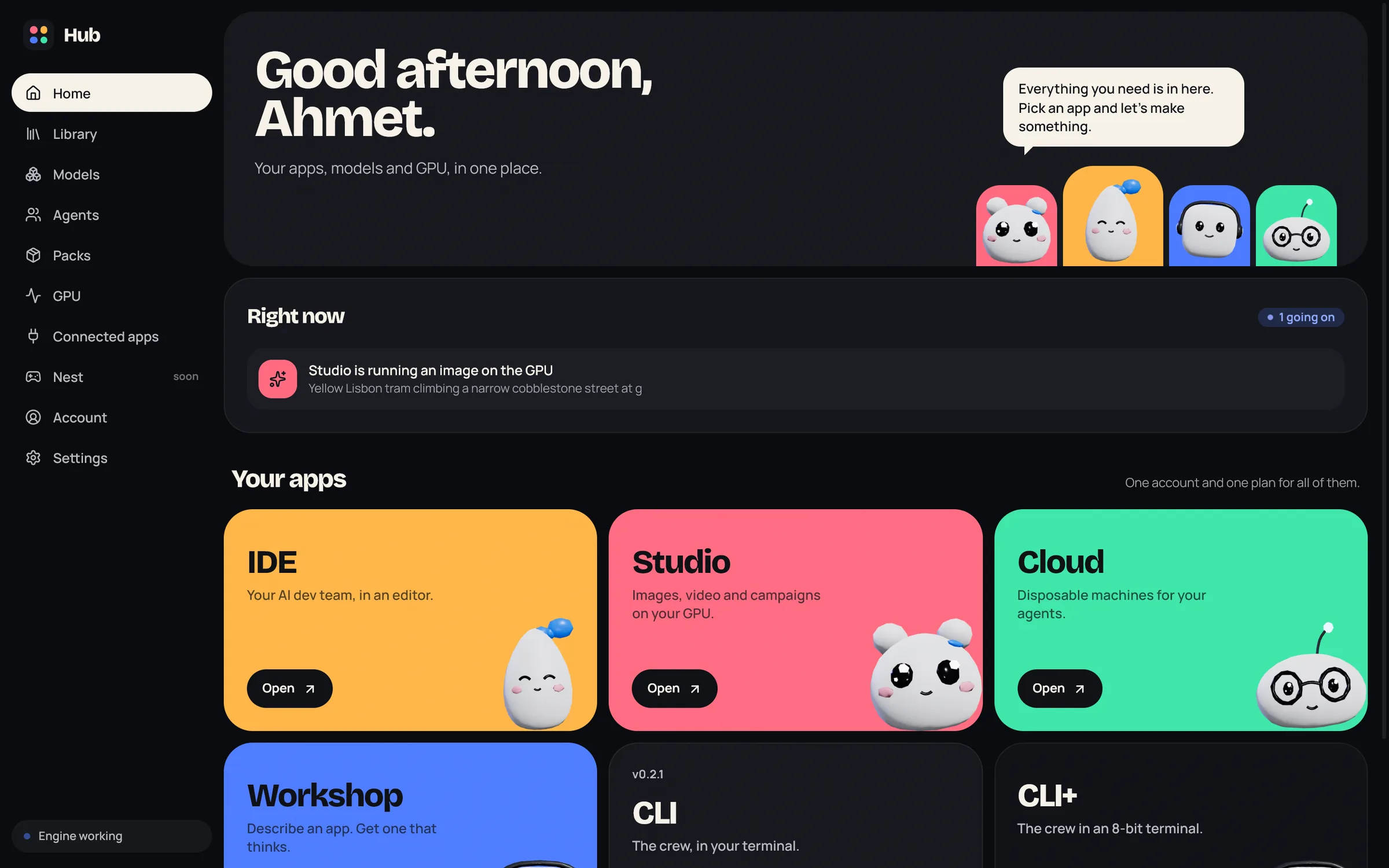
Sign in to the Hub first. See First launch. Then open Hub > Home. Every app has a card with its status and a button.
| Card shows | What it means |
|---|---|
| Install with a version | The app is open for your account. Choose it to download, check and install the app. |
| Open | The app is installed. Choose it to start the app. The CLI opens in a new Windows Terminal window. |
| Update to a version | A newer version is ready. |
| Close to update to a version | The app is running. Close it first, then update. |
| Sign in to install | Sign in to the Hub first. |
| Closed beta. Ask for access on the portal. | The app is in closed beta and your account has no access yet. |
| Coming soon | The app has not opened yet. |
During an install the card shows Downloading, Checking the signature and Installing. Apps install for your user account, like the Hub, in your Jennefer folder if you picked one.
Updates#
- The Hub checks for updates when it starts, every 4 hours, and when you open its window again. A toast in the corner says the new version is ready, with Update and restart. The Hub restarts after the update, and your apps keep running. You can also check in Hub > Settings > Hub with Check for updates.
- Apps are updated by the Hub. A green dot on Home means an app update is waiting. Choose Update on the toast or on the app card. Close the app first if it is running.
- The IDE also checks for its own updates. Open the avatar menu and choose Check for updates. If your IDE is too old for the server, it shows Update required and asks you to update before you continue.
- The Engine updates together with the Hub and the apps, because each of them carries it.
Uninstall#
Remove the Hub and each app from Windows Settings > Apps > Installed apps. Their entries are named Jennefer Hub, Jennefer IDE, Jennefer CLI and so on. Your settings, library and Workshop apps stay in the .jennefer folder of your user profile. Your models, Studio packs and the local runtime stay in your Jennefer folder, for example D:\Jennefer\Data, if you picked one, and in .jennefer if you did not. Delete these folders yourself if you want to remove them too.
FAQ#
Does Setup need administrator rights?
No. Setup, the Hub and every app install for your user account only.
Are the installers signed?
Yes. Setup and the apps are code-signed, and the Hub checks the signature of every download before it installs it.
I removed the Hub by mistake.
Run Jennefer Setup again. The IDE also notices a missing Hub and offers Install Jennefer Hub. See Troubleshooting.
Can I install an app without the Hub?
No. The Hub installs and updates the apps, and holds the sign-in, the models and the agent teams they use.
Can I change the install folder later?
Yes. Move models, packs and the runtime in Hub > Settings > Storage. Apps you install after that go to the new folder.