Mobile and Premium
Mobile
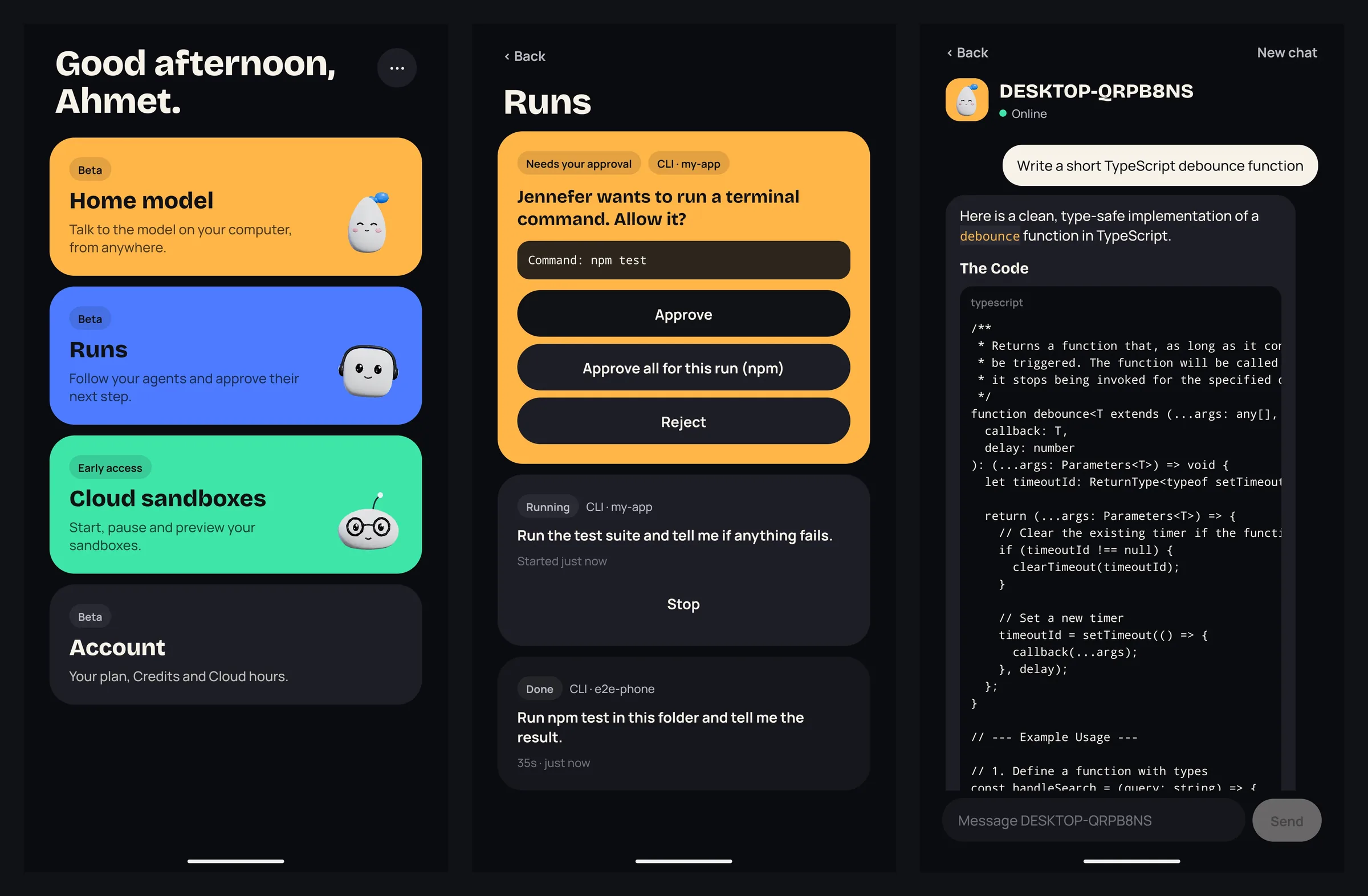
Jennefer Mobile for Android: chat with a model on your computer or your own endpoint from anywhere, build apps in your Cloud sandbox by chat, follow agent runs, answer questions and approvals, get push notifications, and manage your account.

On this page
Jennefer Mobile is an Android app that works together with the Jennefer apps on your computer. It does not run a model on the phone: it talks to Jennefer's servers, which pass your messages to your computer, or to your endpoint's provider when you use an endpoint kept in your account.
Sign in#
Use the same account as the Hub: Sign in to Jennefer opens the sign-in in your phone's browser.
Home model#
Chat with a model on your computer, or with an endpoint kept in your account, from anywhere.
- 1
Turn it on in the Hub
On your computer, open Hub > Settings > Use from your phone and turn it on. Keep the Hub running: while this is on, the Engine stays awake.
- 2
Send a first message
Open Home model on your phone and send a message.
- 3
Allow the phone
The Hub shows that your phone wants to use the model on this computer. Choose Allow this phone within 5 minutes.
To chat while your computer is off, keep an endpoint in your account instead: turn on Use from your phone without this computer for a model in Hub > Models > Your endpoint. This needs a paid plan. See Your endpoint.
Pick a model#
Each chat has its own model. Tap the model chip under the title to open Model for this chat:
- Computer default uses the model set for Mobile in Hub > Models, or else the Hub default.
- The models on your computer, marked Sees images or Text only, Loaded and Hub default.
- Your endpoint: your endpoint models, when the endpoint is approved. They go through your computer, and your provider bills them.
- In your account: endpoints kept in your account, marked Works when your computer is off. With one picked, the header says Your account's endpoint · no computer needed, and your provider bills it.
- Under Effort, choose Default or a level. A new chat starts with the current chat's model and effort. See Model choice.
Chats, files and costs#
- Chats lists your chats with New chat. Edit or a long press gives Rename and Delete. The phone keeps up to 100 chats and the last 200 messages of each.
- Tap + to attach Photos (up to 4 per message, 10 MB each) or a PDF or text file (up to 3 per message). A model on your computer marked Text only refuses photos.
- PDFs can be up to 20 MB and 100 pages. They are read on Jennefer's servers to get their text, then dropped. Text files can be up to 2 MB and are read on the phone. Only the text is kept in the chat.
- Code blocks have Copy. The last answer has Copy and Regenerate, and shows its model, tokens and estimated cost. The header shows the chat's total.
- While a model on your computer waits for the GPU or loads, the answer says so, for example which app is using the GPU, or about how many seconds loading takes.
- To stop an answer, tap the button next to the message box.
Where your messages go#
- Messages to your computer go through Jennefer's servers. Messages to an endpoint kept in your account go from Jennefer's servers to your provider. Neither is stored on Jennefer's servers.
- Chats, photos and file text stay on your phone.
- If something is in the way, the chat says so, for example Your computer is offline, Approve this phone, Phone access is off, No model is ready or This needs a Pro plan. When your computer is offline and you have an endpoint in your account, Use a model from your account switches to it.
- Remove a phone in Hub > Settings under Phones.
- To report a bad answer, press and hold it and choose Report: Wrong or misleading or Harmful or offensive. Only that answer's text is sent to Jennefer for review.
Runs#
Runs shows your agent runs from the IDE, the CLI, Cloud and Workshop, builds you start from the phone (Phone build), and Hangar bot flights, refreshed every few seconds.
- Answer questions and approvals with the option buttons, or type an answer with Send answer.
- Questions that need a secret must be answered on your computer.
- Stop a run that is going.
- Hangar flights show Flying, Landed or Grounded. Ground this bot stops one bot, and Ground all bots grounds every launched bot until you launch it again in Hangar. Hangar needs Use from your phone on and this phone allowed in the Hub.
- Runs are kept for 24 hours.
The IDE accepts phone approvals unless you turn off Allow approvals from your phone in its Settings. The CLI accepts them unless you set JENNEFER_PHONE_APPROVALS=0.
Push notifications#
| Notification | When |
|---|---|
| An agent wants your approval | An approval is still open after 15 seconds. |
| An agent has a question | An agent asks you something. |
| Your run finished | A run of 2 minutes or more ends. |
| Your run stopped with an error | A run of 30 seconds or more fails. |
Cloud sandboxes#
When this part is open for your account, Mobile lists your cloud sandboxes with Start, Pause, Open preview, Build by chat and the Cloud hours left. Sandboxes are created in Jennefer Cloud on your computer, and starting one needs a Cloud plan.
Build by chat asks an agent to build or change an app in the sandbox, with an endpoint kept in your account, while your computer is off. See Build by chat on your phone.
Account#
Account shows your plan, team, Credits, Cloud plan and Cloud hours left. Manage plan and billing opens the portal; there are no purchases in the app. Settings links to the privacy policy, the terms and Delete account.