Studio
Images
Make images on your own GPU with Studio's Image mode: shapes and counts, editing and combining images with words, more like this, animating, and where images are saved.
On this page
In Studio's composer, choose Image, describe a picture and press Enter. Studio paints it on your GPU, and the card develops from a blurred preview to the finished image. Prompts and images stay on this computer.
Install the Image pack#
Images need the Image pack. Without it, Create says Let's set up your studio. with Open Packs in Hub. The pack has two versions: Lite for most GPUs, and Quality, which needs at least 15 GB of GPU memory. See Packs.
Making an image#
- 1
Describe it
Choose Image in the composer and describe the picture, up to 4,000 characters. With an empty feed, idea chips under What should we make? get you started.
- 2
Pick a shape and a count
Square (1024 × 1024), Tall (768 × 1344) or Wide (1344 × 768), and ×1, ×2 or ×4 images.
- 3
Pick a brand (optional)
With a brand, its colors are added to the prompt. See Brands.
- 4
Make it
Choose Make or press Enter. The model is Z-Image-Turbo, in 8 steps.
What you can do with a result#
- Edit: use the image as a reference and describe a change. See below.
- Animate: turn it into a short video. See Videos.
- Four more like this: four new images with the same prompt and size.
- Send to: the IDE, Cloud or Workshop. See Studio overview.
- Show in folder and Delete, which asks Delete from this computer?.
- Click an image to see it large, with Edit and Animate.
Edit and combine images#
Editing needs the Image Edit pack, with the FLUX.2 klein 4B model. Choose Edit on a result to add it to the composer as a reference, then describe what should change. A banner says Editing.
- Add up to 4 references. With more than one, the action becomes Combine, for example "put the product from image 2 into image 1".
- Editing and combining make one image at a time.
- Without the pack, the composer says Editing needs the Image Edit pack. with Get it in Hub.
Where images are saved#
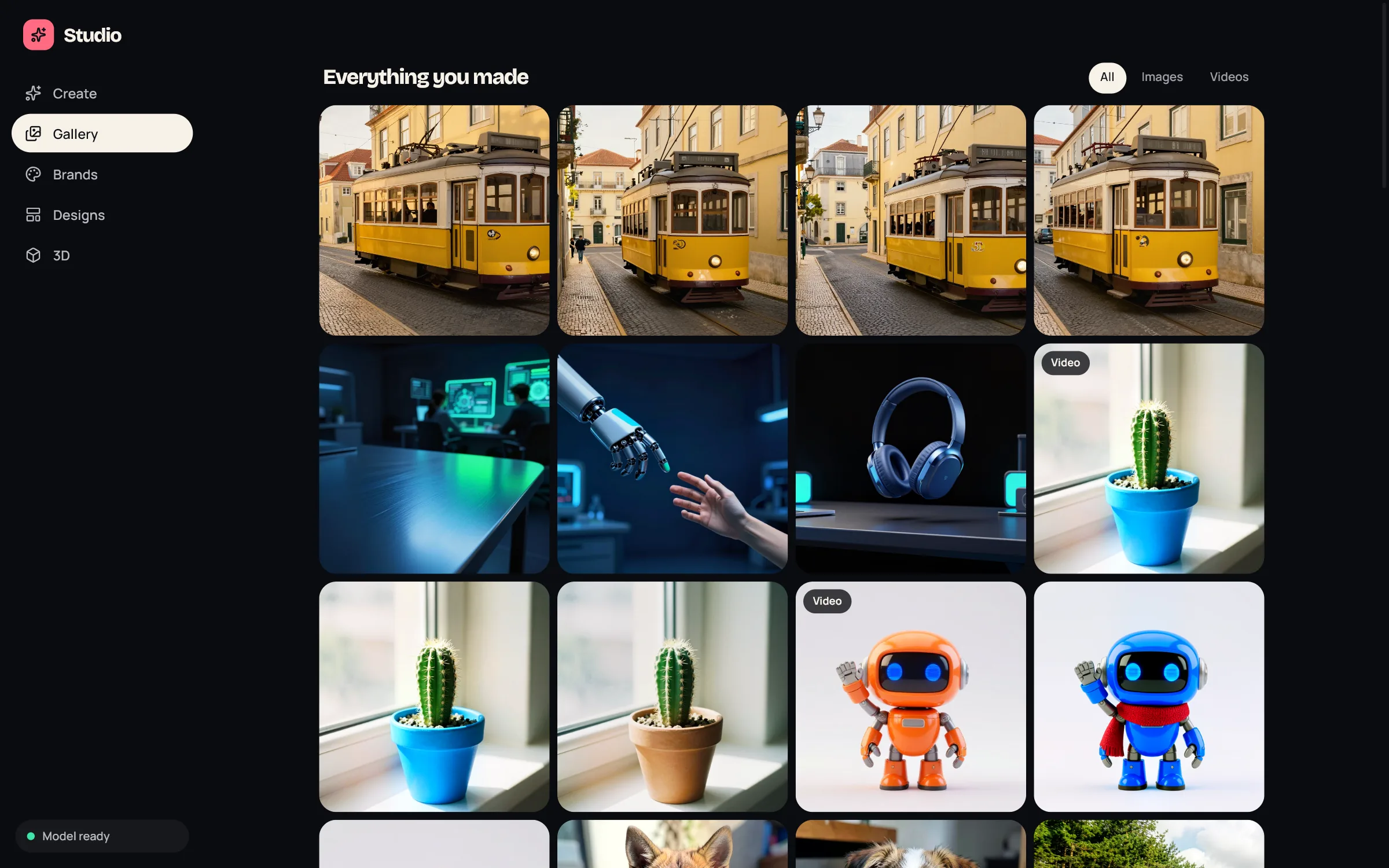
Images are saved as PNG in .jennefer/images in your user profile, in one folder per day, and show in Hub > Library. There is no export button: use Show in folder, Send to, or the Library.
Daily limit#
Free, Code Pro and Workshop Pro include 100 images a day, reset at 00:00 UTC. Studio Pro, All Apps Pro and Team are unlimited. See Studio overview.
FAQ#
Can I make images from the IDE chat?
No. Images are made in Studio. You can send them to the IDE afterwards.
Is the first image slow?
Yes. The first image loads the model into the GPU. Later images are much faster.
Can I set the seed or the number of steps?
No. Studio picks them for you.