Hub
Library
Hub > Library holds everything you made in any Jennefer app. Find images, videos, brands, designs, 3D models and apps, send them to another app in one step, and back them up to your account.

Hub > Library shows everything you made in any Jennefer app: images and videos from Studio, brands, designs and 3D models, apps from Workshop, and files. Your files stay in their normal folders on this computer. The library only indexes them.
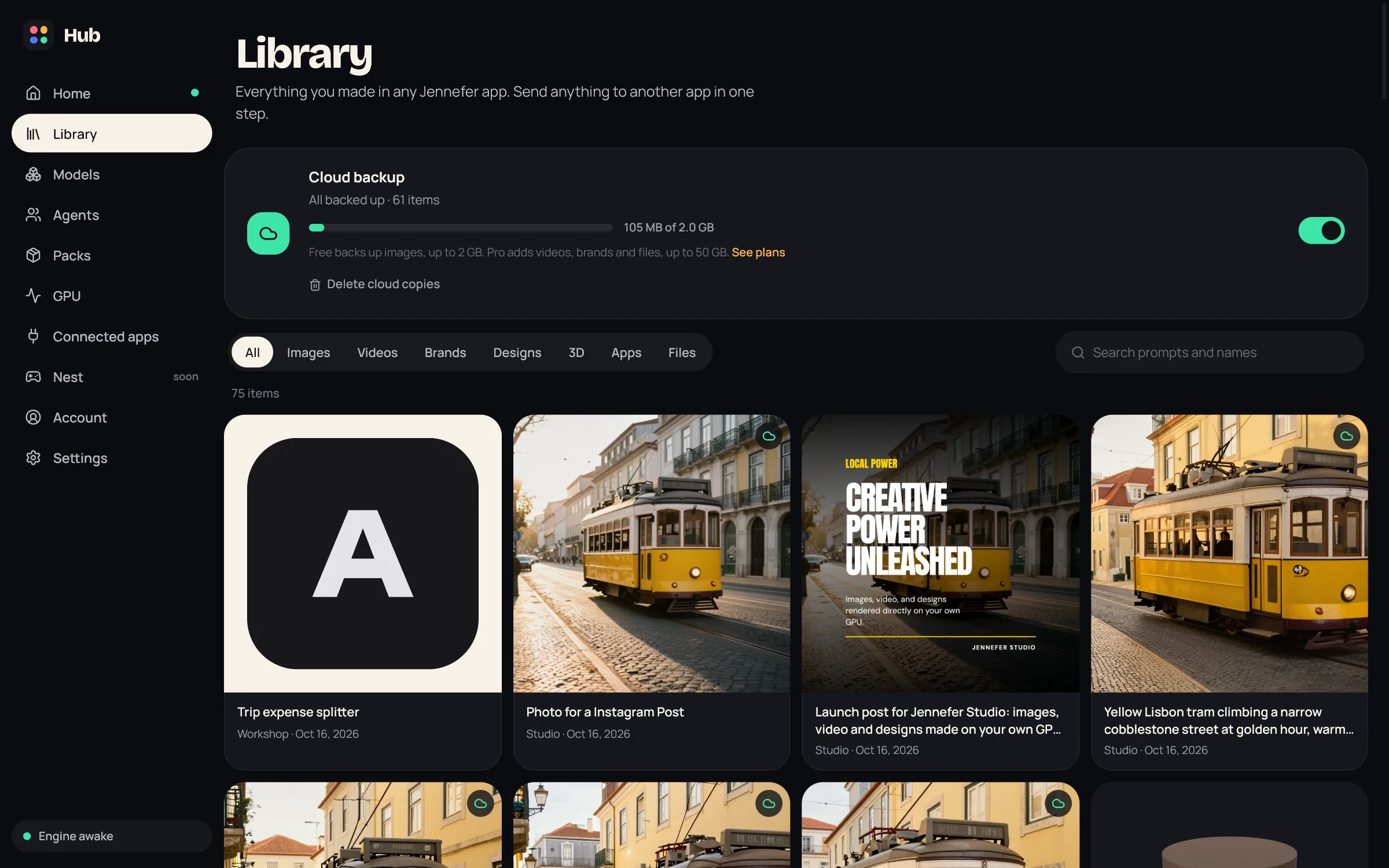
Find what you made#
- Filter with All, Images, Videos, Brands, Designs, 3D, Apps and Files.
- Search with Search prompts and names.
- Open an item to see its app, prompt, size and model, and where it was used. Videos play right there.
- Delete removes an item and its files from this computer after you confirm.
Send to another app#
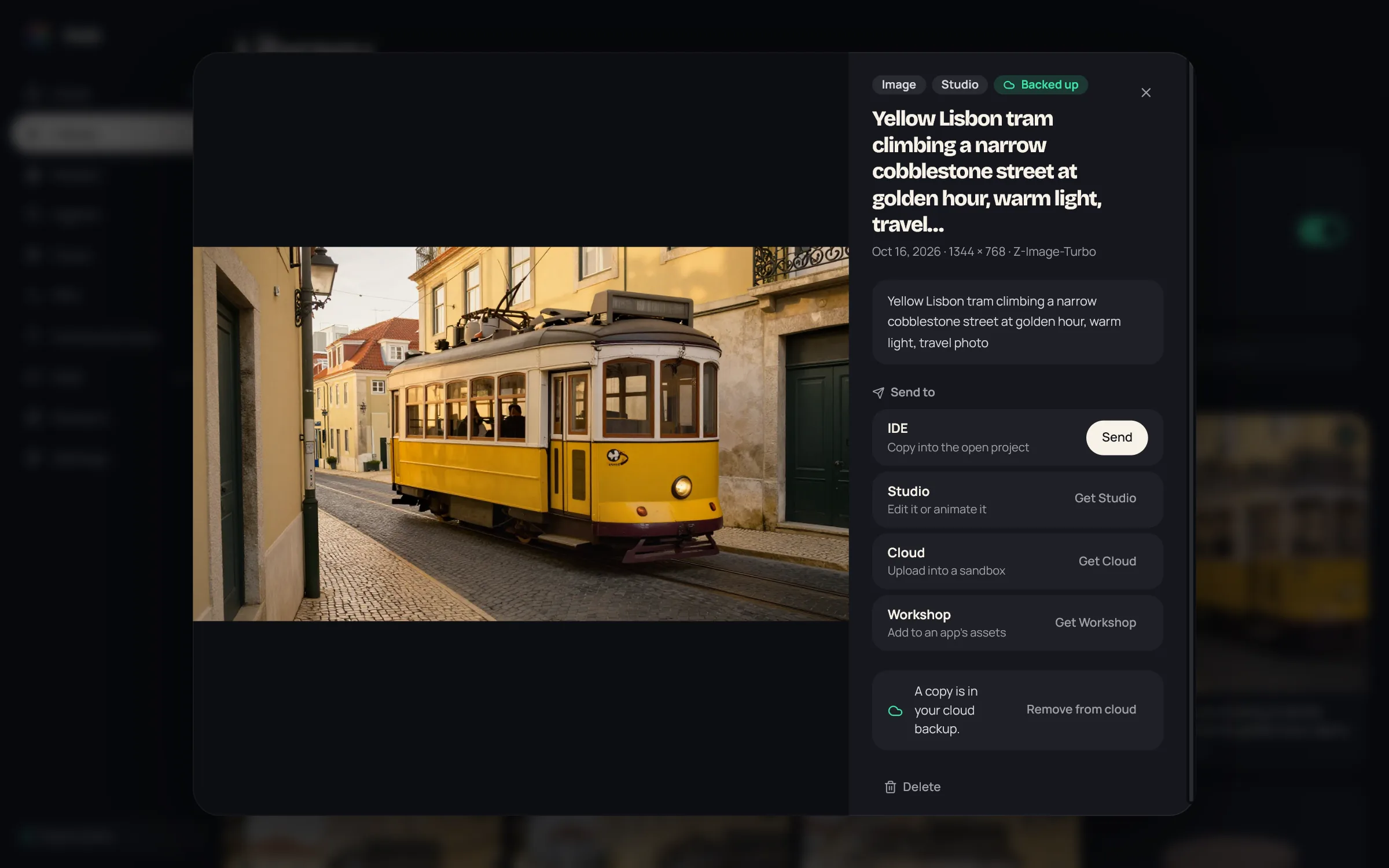
Open an item and choose Send to. Each item lists the apps that can take it:
| Item | Send it to |
|---|---|
| Image | IDE (copy into the open project), Studio (edit or animate it), Cloud (upload into a sandbox), Workshop (add to an app's assets) |
| Video | IDE, Cloud, Workshop |
| Brand | Studio (design with this brand), Workshop (style an app with it) |
| Design | IDE (copy the PNG into the open project), Cloud, Workshop |
| 3D model | IDE (copy the GLB into the open project), Workshop |
| Workshop app | IDE (open the app's code), Workshop (keep building it) |
| File | IDE, Cloud |
- 1
Choose Send
The Engine starts the target app if it is not running. If the app is not installed, the button is Get and takes you to Home.
- 2
Finish it in the other app
The target app shows a bar with the item. For example, the IDE asks where to put the file, Cloud asks which sandbox and folder, and Workshop asks which app.
- 3
Check the status
The library item shows Waiting for the app, Sent to the app, declined, or did not answer in time. A request waits up to 10 minutes.
Studio also has Send to on its results. See Studio overview.
Cloud backup#
Cloud backup keeps a private copy of your library in your Jennefer account. Files stay on this computer too. It is off until you turn it on with the switch on the Cloud backup card.
- The card shows the progress, for example All backed up with the number of items, and how much space you use. Back up now starts a backup right away instead of waiting for the next one.
- Items with a copy show a cloud icon. Open one and choose Remove from cloud to delete just the cloud copy, or Back up again.
- If an item could not be backed up, the card says how many, and the item shows an amber cloud. Open it to see why. Jennefer tries again later, waiting longer after each failed try, or right away when you choose Back up now.
- Delete cloud copies deletes every cloud copy and turns backup off. Files on this computer stay.
- You need to be signed in. You can manage backup only in the Hub.
| Plan | Backup space | What is backed up |
|---|---|---|
| Free | 2 GB | Images only, up to 50 MB each |
| Code Pro, Workshop Pro | 20 GB | Images, videos, brands, designs, 3D models and files |
| Studio Pro | 50 GB | Same as above |
| All Apps Pro | 100 GB | Same as above |
| Team | 100 GB per member | Same as above |
Paid plans back up items of up to 2 GB each. Storage add-ons add more space. Workshop apps are not backed up. When the space is full, the Hub says Your cloud backup is full. Free up space or upgrade your plan. See Plans and account.
FAQ#
Does the library move my files?
No. Files stay where each app saved them. The library indexes them in .jennefer/library.
Does removing a cloud copy delete my file?
No. The file stays on this computer.
Why can I not send a video to Studio?
Studio takes images and brands only.