IDE
The Workbench
A tour of the IDE's Editor view: the fixed Workbench with Files and Search, the editor and terminal, Chat and Run, the header, the team chip and the command palette.

In Editor, the IDE shows the Workbench: one fixed layout with three columns. You can resize and hide the parts, but not move them.
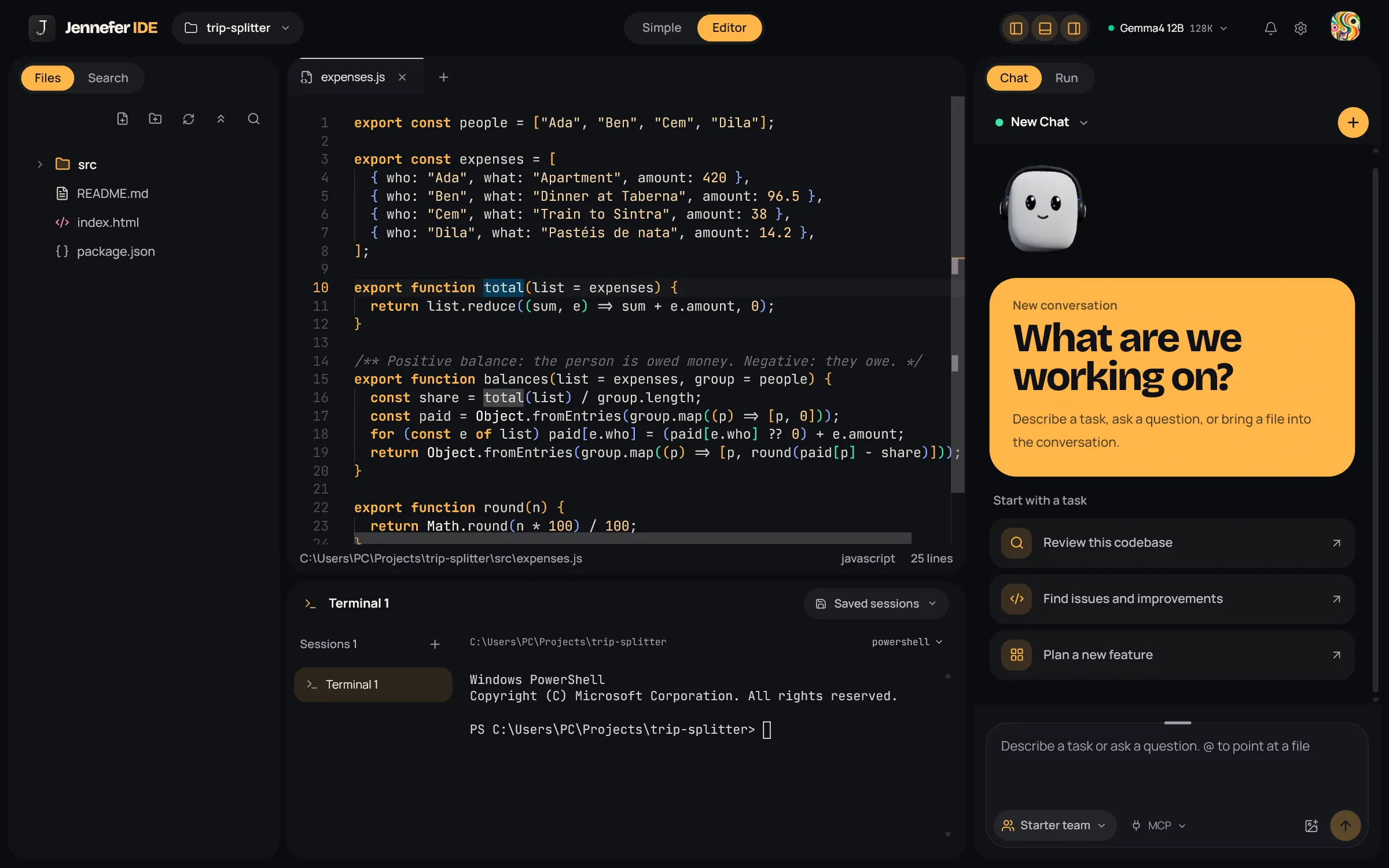
The three columns#
| Column | What it holds |
|---|---|
| Left | Files and Search. See Files and editor. |
| Center | The code editor on top and the terminal below. See Terminal. |
| Right | Chat, where you talk to your agents, and Run, where you follow a run. See Chat and Run view. |
- Drag the borders between parts to resize them. The IDE remembers the sizes.
- Hide or show parts with the header buttons Files (Ctrl+B), Terminal (Ctrl+J) and Chat (Ctrl+I).
- The Run tab shows a badge with the number of active tasks while a team works.
- If a team admin turned off the terminal or the chat for you, that part says This panel was turned off by your team admin.
The header#
From left to right:
- Project switcher: the folder name, or Open a project. Its menu shows the current path, Recent projects, Open folder… and Close project.
- Simple / Editor pill. See Simple and Editor.
- Panel buttons: Files, Terminal and Chat. A Preview eye button appears for HTML, Markdown, JSON, SVG, JSX and TSX files. See Files and editor.
- Model chip: the model this window uses, where it runs and its context window. Open it to pick another model and effort under This window, or Make IDE default. Endpoint models show in blue with this window's estimated cost. Change in Hub opens Hub > Models. See Model and effort per app.
- Bell: your notifications. See Notifications.
- Settings gear. See Settings.
- Avatar menu: your name and plan, Account (opens the Hub), Manage plan (opens the portal), Check for updates and Log out.
The team chip: who works on this#
In Editor's chat, the chip at the bottom left of the message box decides who works on your next message. Its tooltip is Who works on this.
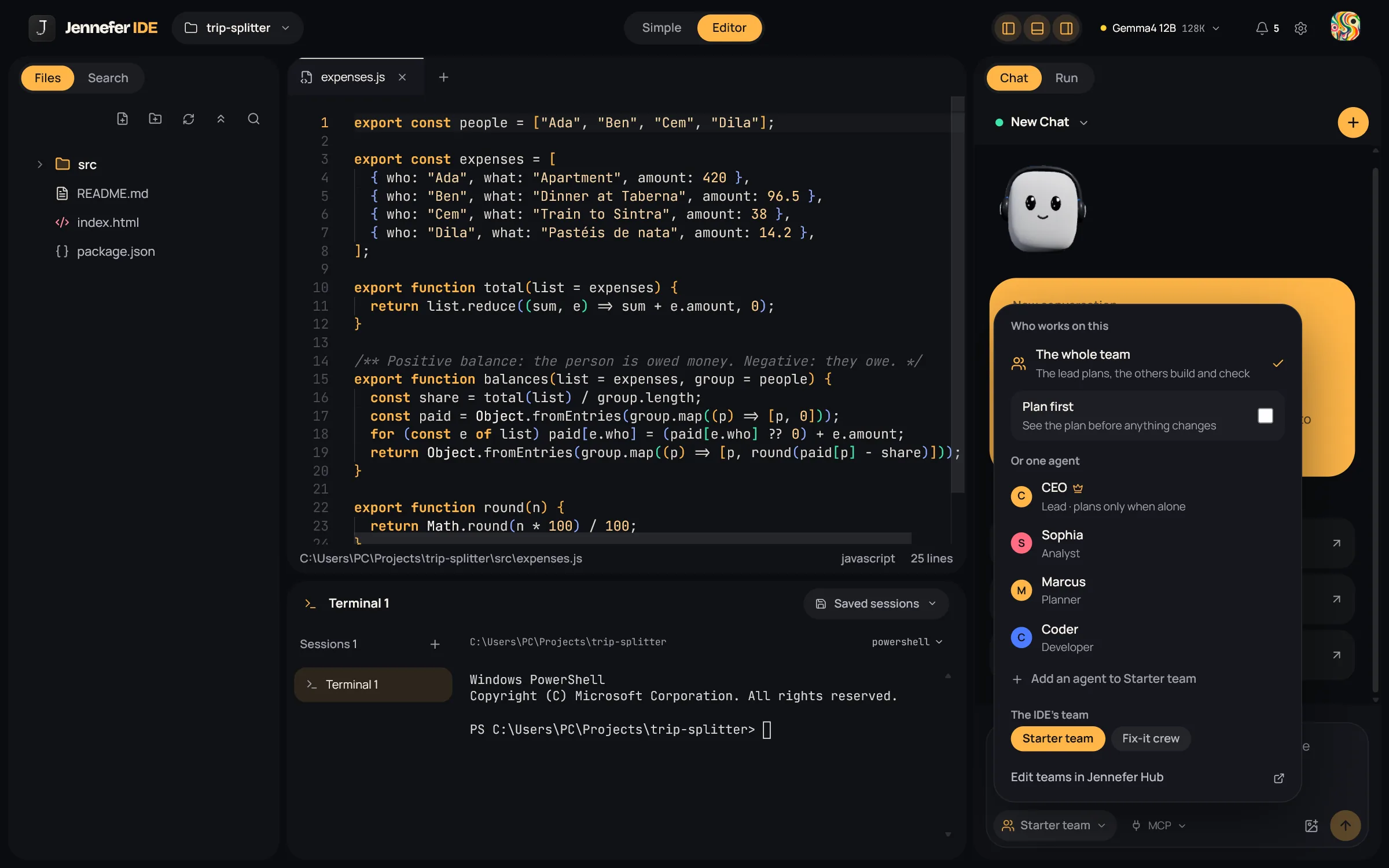
| Choice | What happens |
|---|---|
| The whole team | The lead plans, the others build and check. See Team runs. |
| Plan first | Shown with the whole team. The lead writes a plan and nothing changes. See Chat. |
| Or one agent | One member works alone, in a loop of thinking, using a tool and reading the result. Good for small, focused jobs. The lead plans only when it works alone. |
- Add an agent to your team adds one from the agent library. Hover a member and use × to remove it. The lead cannot be removed.
- The IDE's team switches between your teams, when you have more than one. This also changes the IDE's team in the Hub.
- Edit teams in Jennefer Hub opens Hub > Agents.
- The chip is locked while a run is going.
Command palette#
Press Ctrl+K or Ctrl+P, or choose + in the editor tabs. The palette, Quick access, says Search files and commands and has three scopes: All, Files and Commands.
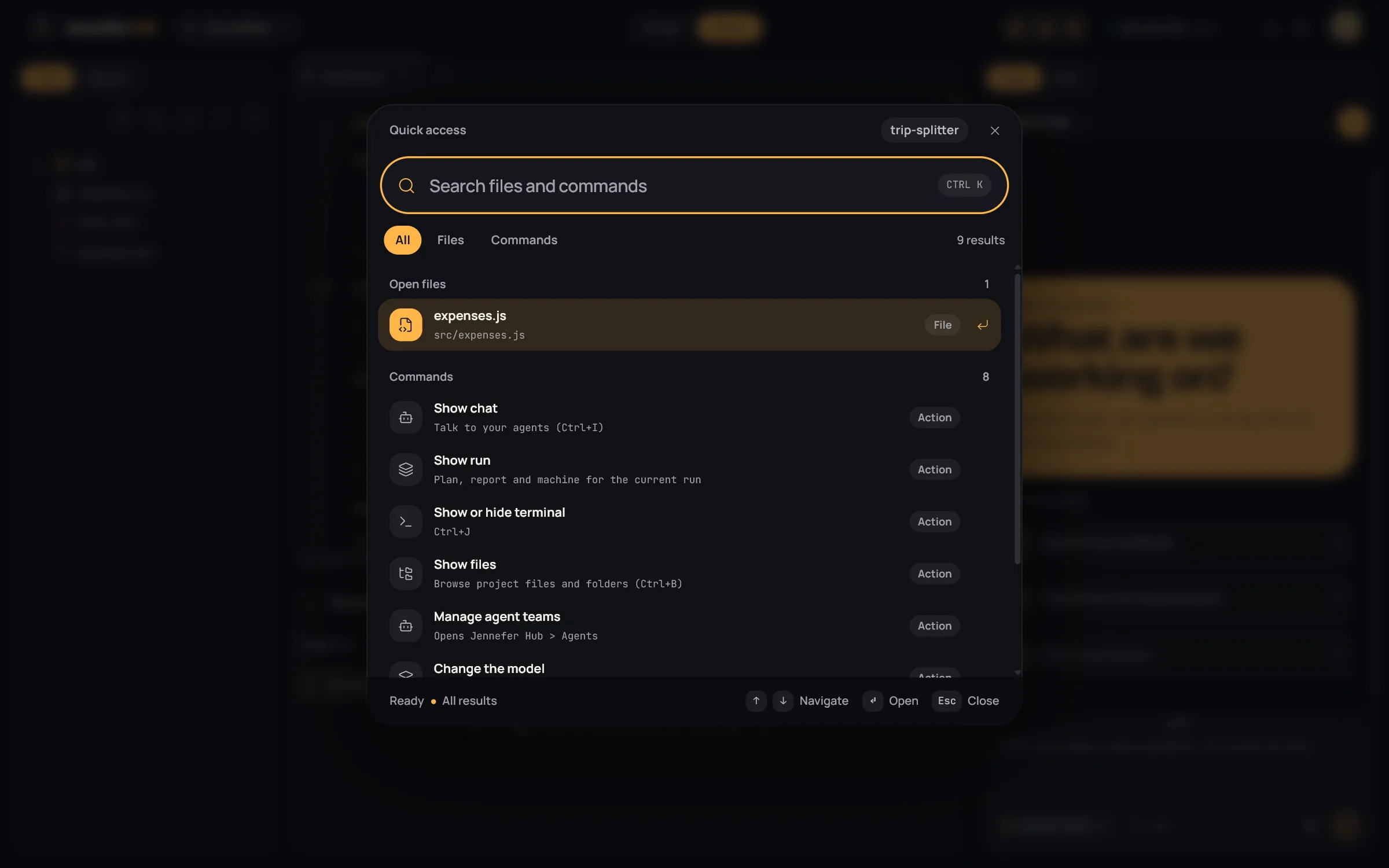
| Command | What it does |
|---|---|
| Show chat | Opens the Chat tab. |
| Show run | Opens the Run tab. |
| Show or hide terminal | Toggles the terminal. |
| Show files | Opens Files. |
| Manage agent teams | Opens Hub > Agents. |
| Change the model | Opens Hub > Models. |
| Start product tour | Runs the short tour again. |
| Open settings | Opens Settings. |
Use the arrow keys, Enter to run and Esc to close. All shortcuts are in Keyboard shortcuts.