DocsHub
Hub Chat
Chat with your model in Jennefer Hub: pick the model and effort for each chat, add folders, preview files, get artifacts, open a browser tab, answer short question forms and keep an eye on the context.
On this page
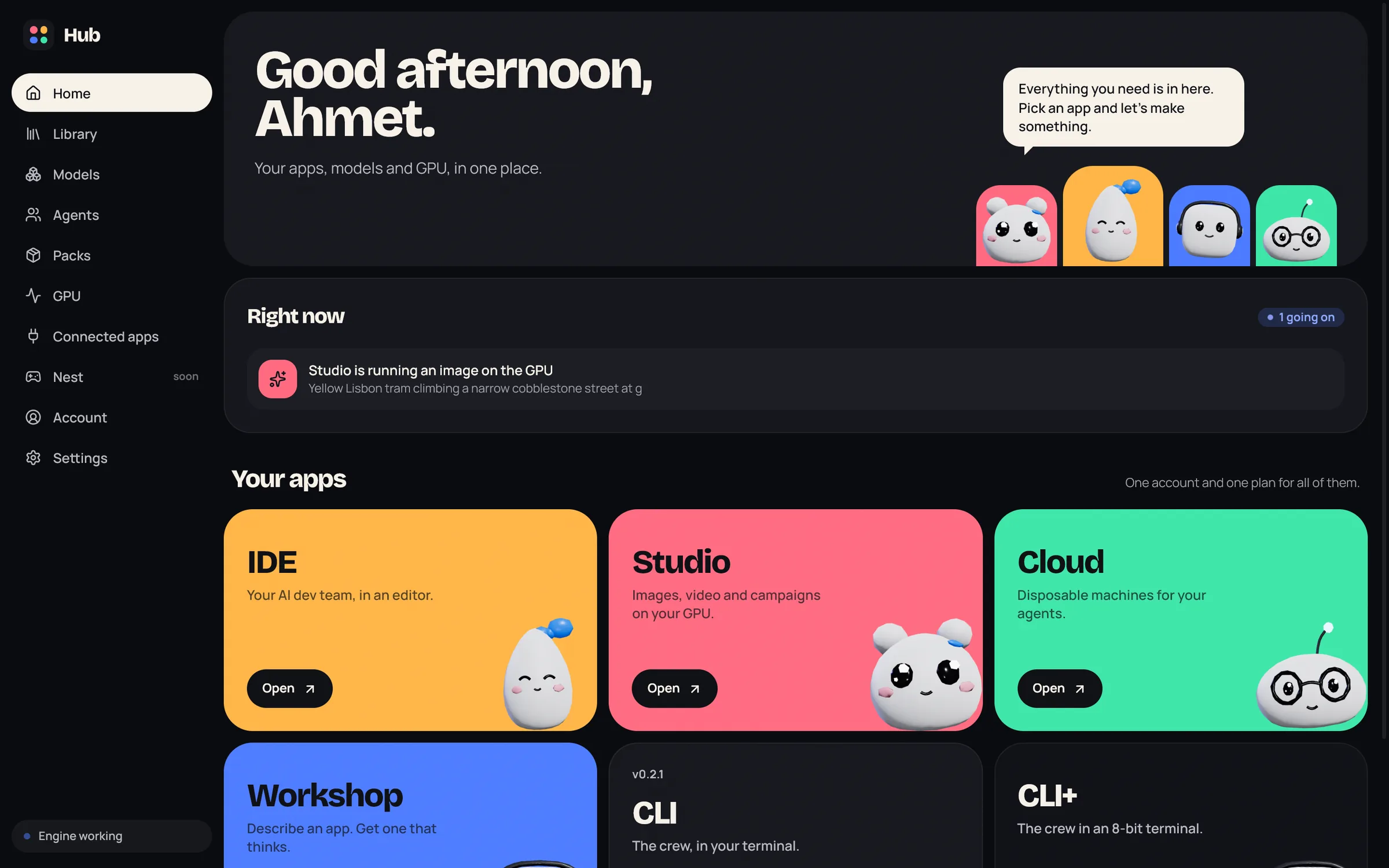
Jennefer Hub opens to a chat. Ask a question, or add a folder and let Jennefer read, summarize and compare the files in it, pull tables out of a report or draft a new file. Answers are signed Jennefer with the model that wrote them.
Start a chat#
- Choose New chat in the sidebar, press Ctrl N (on a Mac ⌘N), or choose New chat in the tray menu (the menu bar on a Mac).
- Type in the box and press Enter to send. Shift Enter adds a new line.
- The wand button, or Alt+E, rewrites your text before you send it. See Improve a prompt.
- While Jennefer works, a line above the box says what it is doing, for example Reading a file or Thinking. The stop button ends the answer.
- Under each answer, the line shows where the model ran and the tokens it used, with Copy and Ask again.
- Chats are listed in the sidebar by day. Rename a chat from its title at the top. Delete one with the trash icon and a second click on Delete?. Ctrl K searches your chats.
Model and effort for each chat#
The model and effort sit under the box. Each chat keeps its own choice, so picking a model in one chat does not change the others. A new chat starts with the last model you picked.
- 1
Open the model picker
Choose the model under the box, or type
/model. The picker shows where models run: This computer, Your API, Jennefer Models and Recent, with your current model below them. - 2
Pick where the model runs
Choose a card to see its models. A long list has a search field. Typing a letter on the cards searches every model.
- 3
Pick the model
Choose a model. Make default next to the current model makes new chats start with it.
- This computer lists your downloaded models. They are free to use. See Models.
- Your API lists the models you saved with your own key, once your address is approved. See Your endpoint.
- Jennefer Models are opening later. The card says Opens soon, and until then your chats use this computer or your API.
- Recent shows the Hub default first, then the last 5 models you picked.
- Effort sets how hard the model thinks: Auto lets the model decide, then Off, Low, Medium, High, Extra high and Max. Some models do not have every level.
/thinksets it too. See Model and effort per app.
Folders and files#
- Choose Folder under the box, press Ctrl O or type
/folderto add a folder. It shows as a chip, and × removes it from the chat. - Jennefer reads only inside the folders you added. Every new file, change, move or delete asks you first.
- Drop files on the chat to use them. They are copied into the chat's own folder.
/fileslists the files in the chat's folders.- Jennefer's own folders, such as
.jenneferand your Jennefer folder, cannot be added.
File preview#
Open a file from an answer, from a folder chip or from the dropped files, and it opens in a panel next to the chat. Each file is a tab. Drag the panel's edge to make it wider, and press Esc to close it.
| File | What you see |
|---|---|
| The pages, with zoom, fit width and Search in PDF. | |
| Spreadsheets: CSV, TSV and Excel | A table with sheet tabs and Filter rows. |
| Word documents | The document on a page. |
| Images | The image, with zoom and actual size. |
| Markdown, code and text | Markdown rendered or as source, code with line numbers. |
Every file has Open in app and Show in folder. For a file the Hub cannot show yet, use Open in app.
Artifacts#
When something is better seen than read, such as a chart, a diagram, a small page or a table to keep, Jennefer makes an artifact and opens it in the panel. Artifacts can be an HTML page, Markdown, an SVG graphic, a Mermaid diagram or a CSV table.
- Artifacts are kept in the chat's own folder. Each change keeps a new version, and the arrows switch between versions.
- Copy copies the content. Save to a folder saves it into one of the chat's folders, after you confirm.
- HTML pages run in a sandbox. They cannot reach your files, and they can load scripts, such as chart libraries, only from a few code sites. Open in your browser opens one outside the sandbox.
The browser tab#
Browser at the top of the chat (the globe) opens a browser tab in the panel. You can also type /browser with a link. You can browse yourself, and Jennefer can open the links you gave it, read the page, click and type.
- Jennefer opens only links you gave in the chat, or pages on the site that is already open. For anything else it asks you. It does not search the web.
- You type passwords, card numbers and codes yourself. Jennefer does not type them.
- Clicks that send, submit, pay, delete or download ask you first.
- To guide you through a step, Jennefer can point at a part of the page and tell you what to do.
- Page text is treated as data. Jennefer does not follow instructions written on a page.
- Open in your browser opens the page in your own browser.
On a Mac, press ⌘ Cmd instead of Ctrl for these shortcuts and the others on this page. Switching tabs stays ⌃ Control Tab.
Question forms#
When Jennefer needs a decision before it can do good work, it asks in a short form above the box instead of guessing. A form has up to four questions, each on its own tab, and Jennefer marks the answer it recommends.
- Questions can be one choice, several choices, yes or no, a short text, or a scale from 1 to 5.
- Choice questions always have Other… for your own answer.
- Press 1 to 9 to pick an option, Space to tick one in a several-choice question, Enter for the next question and to send, and Esc to skip a question.
- After you send, the form becomes a short You answered note in the chat.
Context and the session panel#
After the first answer, a ring at the top of the chat shows how full the model's context window was on the latest request, in percent. It turns amber from 70% and pink from 90%. Click it, or Session before the first answer, or type /session, to open the Session panel:
| Section | What it shows |
|---|---|
| Context | The tokens of the latest request out of the model's window, and an estimate of what filled it: instructions and tools, earlier messages, your message, and files, pages and steps. |
| Model | The chat's model, where it runs, and its effort. |
| Folders | The folders you added, with Add, and the chat's own folder for dropped files and artifacts. |
| MCP servers | Your servers from Hub > Settings > Agent tools, each with Use in this chat. Every MCP call asks you first. |
| Browser | The open page, when the browser is open. |
| Web pages | Your web access setting. |
Each request sends the last 8 messages, each cut to 1,500 characters. /compact summarizes the chat so far, so Jennefer keeps it and sends less. Add what to keep, for example /compact keep the numbers. The chat then shows Earlier messages summarised.
Slash commands#
Type / in the box to see every command. Letters filter the list.
| Command | What it does |
|---|---|
/new | Start a new chat. |
/compact | Summarize the chat so far. |
/rename | Rename the chat. |
/retry | Ask the last question again. |
/export | Save the chat as a Markdown file. |
/chats | Search your chats. |
/folder, /files | Add a folder, or list the files in the chat's folders. |
/browser | Open the browser, and a link if you give one. |
/session | Context, model, folders and MCP servers. |
/model, /think | Pick the model, or set the effort: auto, off, low, medium, high, xhigh or max. |
/summarize, /compare, /table, /draft | Ready requests: summaries of your files, what differs between two files, tables out of a report, or a reply, brief or plan. |
Where chats are kept#
- Hub Chat runs in the Hub on this computer. Its requests go through the Engine to the model you picked.
- Chats are saved on this computer only, in
.jennefer\hub-chat, or inData\hub-chatinside your Jennefer folder if you picked one. They are not synced. - Each chat has its own folder for dropped files and artifacts.
- With a model on your API, your provider receives the messages and the file content Jennefer reads. See Privacy and security.
FAQ#
Can Hub Chat run commands or code?
No. It reads and writes files in the folders you add. Use the IDE or the CLI for a coding project.
Can I read chats from my phone?
No. Hub chats stay on this computer. Jennefer Mobile has its own chats.
Why does Jennefer forget the start of a long chat?
Only the last 8 messages are sent. Use /compact to keep a summary of everything before them.